How to photograph or scan sheet music for better results
How well the app reads your sheet music depends more on the photo than on anything else. To show how much, we made six versions of the same page, with the usual problems of a quick phone photo, read each of them in the app, and compared the result with the original note by note.
The test: one page, six photos
The page is a two-staff arrangement of Ode to Joy (126 notes in 16 measures, marked Moderato ♩ = 108). The tilt, angle, shadow, blur, and small size were made from the same picture, so the only difference is the problem itself.
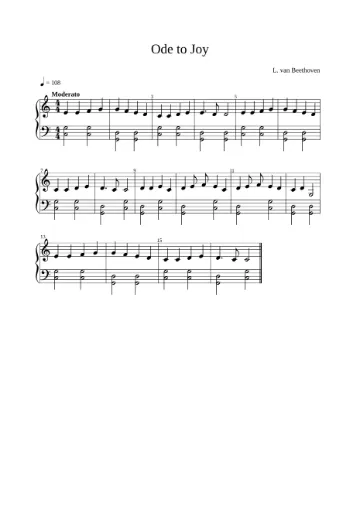
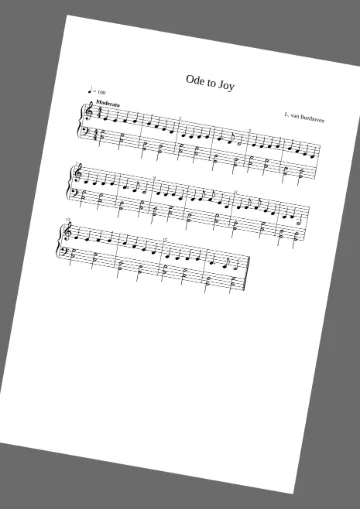
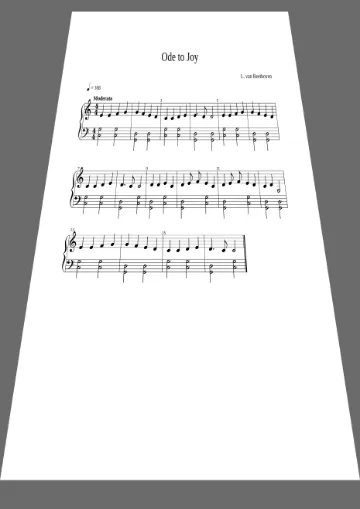
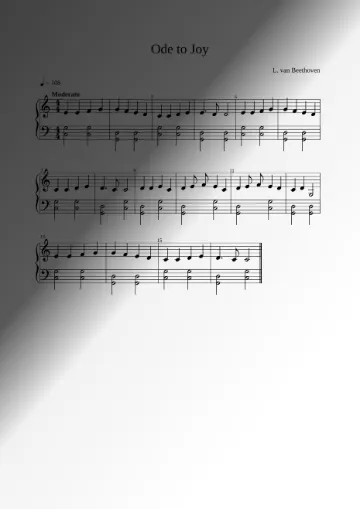
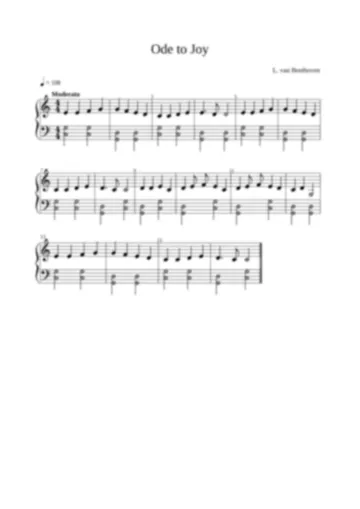
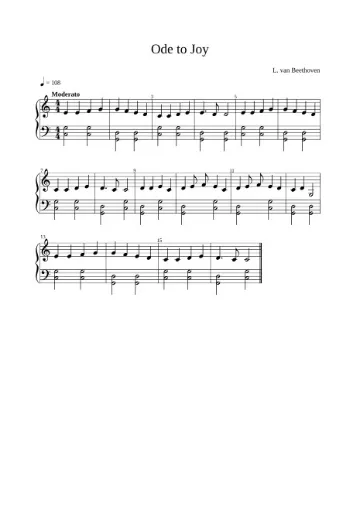
| Photo | Notes right | Notes read (of 126) | “!” measures | Tempo (♩ = 108 on the page) |
|---|---|---|---|---|
| Straight, sharp, even light | 100% | 126 | 0 | ♩ = 108 (right) |
| Page tilted by 10° | 86.5% | 112 | 1 | ♩ = 108 (right) |
| Taken at an angle (top narrower) | 100% | 126 | 0 | ♩ = 108 (right) |
| Shadow over the top of the page | 100% | 126 | 0 | not found (♩ = 120) |
| Out of focus | 73.4% | 128 | 4 | not found (♩ = 120) |
| Page small in the photo (465 px wide) | 100% | 126 | 0 | not found (♩ = 120) |
“Notes right” is the share of notes read with the right pitch and length, in the right order, on each staff (extra notes count against it). Measured with this app's reading engine.
What the results show:
- Blur is the worst problem (73.4%): note heads run into the staff lines, so the pitch and the rhythm both go wrong, and several measures no longer add up.
- A tilted page loses notes (86.5%). Straightening the page in the photo, or holding the camera parallel to it, avoids this.
- A shadow did not hurt the notes here, but the tempo marking in the shadow was missed. Text is more fragile than notes.
- A moderate angle and a small but sharp page were read correctly. The engine straightens the staves and adjusts the contrast by itself, but only up to a point.
This is one simple page; a dense piano score or a real photo with several problems at once loses more. The order of the problems, though, is a good guide.
Tips for a good photo
- Focus first. Tap the music on the screen to focus, hold still, and check that the note heads are sharp when you zoom in. Use both hands or rest your elbows on the table.
- Hold the camera parallel to the page. Look straight down from above the middle of the page, so the page is a rectangle and the staves are horizontal.
- Fill the frame with one page. The whole page should be in the photo, but with little else around it. Take one page per photo; a book's two facing pages in one photo also works.
- Use even light. Daylight from a window or a ceiling light works well. Avoid your own shadow and the shadow of the phone; move so the light comes from the side. Avoid the flash, which leaves a bright spot.
- Flatten the page. Press a book open at the edges, or put a sheet on the table. Curved staves near the spine are harder to read.
- Keep the top of the first page in the photo. That is where the tempo marking is.
The app reads printed music. Handwritten scores, tablature, and very small notes (such as a pocket score) are not read reliably.
Scans and PDFs
A flat scan avoids almost every problem above, so use one when you can. 300 dpi in grayscale or black and white is plenty. A PDF from a scanner app on a phone (which straightens and crops the page) also works well. If you have a PDF made by a notation program, open it directly: it is sharper than any photo. Up to the first 12 pages of a PDF are read.
After reading
Play the result while you follow the page. If a few notes are wrong, fix them in the editor (see how to fix reading mistakes); if many are wrong, a new photo is usually faster. If the tempo was missed, set it by hand (see tempo markings and BPM).