How to find and fix reading mistakes
Reading sheet music automatically (optical music recognition) is never perfect: a sharp can be missed, a dotted note can lose its dot, or a note can end up one step too high. This page shows how to find those mistakes quickly and fix them in the app's editor.
Find mistakes by listening
Play the score while following the printed page. A wrong pitch or rhythm is much easier to hear than to see.
- Slow down. Lower the tempo (−5 or the slider) so that you can follow every note.
- Click a note to move the cursor there, then press Play to listen from that point. Use it to repeat a suspicious passage.
- Compare measure by measure. The measure numbers on the score help you find the same place on the page.
If almost everything is wrong, fixing note by note takes longer than taking a better photo. See how to photograph sheet music.
Start with the measures marked “!”
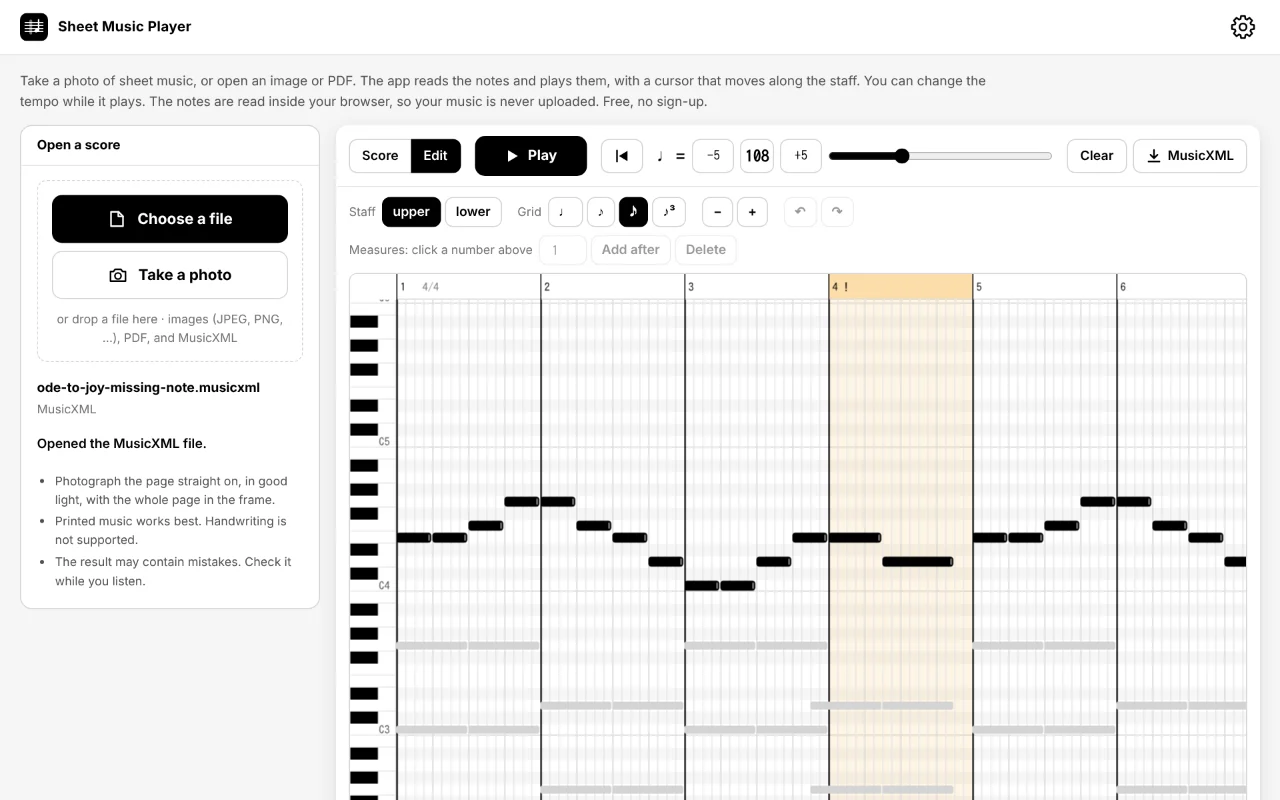
Every measure must add up to the time signature: four quarter notes in 4/4, three in 3/4, and so on. When a measure the app read has too many or too few beats, it is highlighted and marked ! in the editor. This almost always means a note was missed, added, or given the wrong length. One exception: a piece that starts with a pickup (an upbeat before the first full measure) has a short first measure on purpose, and often a short last measure too, so a “!” there can be correct. Measures that add up can still have a wrong pitch, so listen to those too.
How the editor works
Switch to Edit. Each note is a box on a piano roll: the keyboard on the left shows the pitch, and time runs from left to right. For a piano score, choose the upper or lower staff at the top.
| To do this | Do this |
|---|---|
| Change the pitch | Drag the note up or down, or select it and press ↑ ↓ (with Shift: one octave) |
| Move it in time | Drag it left or right, or press ← → |
| Change the length | Drag its right edge |
| Add a note | Click an empty spot |
| Delete a note | Right-click it, or select it and press Delete |
| Select several | Drag across an empty area, then move or delete them together |
| Snap to | Grid: quarter, eighth, sixteenth notes, or eighth-note triplets |
| Add or delete measures | Click a measure number at the top, then “Add after” (with the number of measures) or “Delete” |
| Undo / redo | The arrow buttons, or Ctrl+Z |
Switch back to Score to see the corrected staff and play it again.
Common mistakes and how to fix them
These are the kinds of mistakes music recognition programs often make, and the quickest fix for each.
| Mistake | Typical cause | Fix |
|---|---|---|
| A note one step too high or low | Notes on ledger lines far above or below the staff, or a note head between lines in a blurred photo | Drag it up or down to the right key |
| A missing sharp, flat, or natural | Small accidentals; an accidental also applies to the rest of the measure | Select the note and press ↑ or ↓ once (one semitone) |
| Every F (or every B, …) is wrong | The key signature was misread | Fix the notes, or correct the key signature in a notation program |
| Wrong length; the measure is marked “!” | A missed dot, flag, or beam, or a triplet read as plain eighths | Drag the right edge; use the triplet grid for triplets |
| A note is missing or extra | Notes in a dense chord, or a mark on the paper taken for a note | Click to add, right-click to delete |
| Too few measures after a long rest | A multi-measure rest (a thick bar with a number) read as a single measure | Click that measure's number and “Add after” the missing number of measures |
| One octave off | An 8va line, or a clef change that was missed | Select the notes and press Shift+↑ or ↓ |
What the editor cannot change
The editor changes notes and measures. It does not change the key signature, the time signature, clefs, bar lines, repeat signs, or text. If those are wrong, save the score as MusicXML and fix them in a notation program such as MuseScore (see what MusicXML is). Lyrics and chord symbols are not read in the first place.
Save your corrections
When you switch back to Score (or save), the corrections are kept in the browser along with the score. To keep a copy as a file, press MusicXML. When the notes are edited, the score is rebuilt from the notes, so slurs, articulations, and similar markings are not kept in the saved file.