How to play sheet music from a photo or PDF
Sheet Music Player reads printed sheet music from a photo, an image, or a PDF and plays it back, with a cursor that moves along the staff. Use it to hear how a piece goes before you practise it, to check the notes you are reading, or to play along at a slower tempo. This guide walks through each step with screenshots.
What you need
- A computer with Chrome or Edge (version 137 or later). The reading engine needs a browser feature called JavaScript Promise Integration (JSPI); browsers without it show a message instead. Newer Firefox (153+) and Safari (27+) and Chrome on Android also have it, but the app is tested only on Chrome and Edge on a computer.
- About 2 GB of free memory while a page is being read. Close other heavy tabs if the computer is short of memory.
- An internet connection the first time. The app downloads its reading engine once (about 130 MB) and keeps it in the browser. After that it starts right away and also works offline.
- Printed sheet music in standard notation. Handwritten music and tablature are not supported.
The app is free and needs no account. The notes are read inside your browser, so your sheet music is never uploaded.
1. Open a score
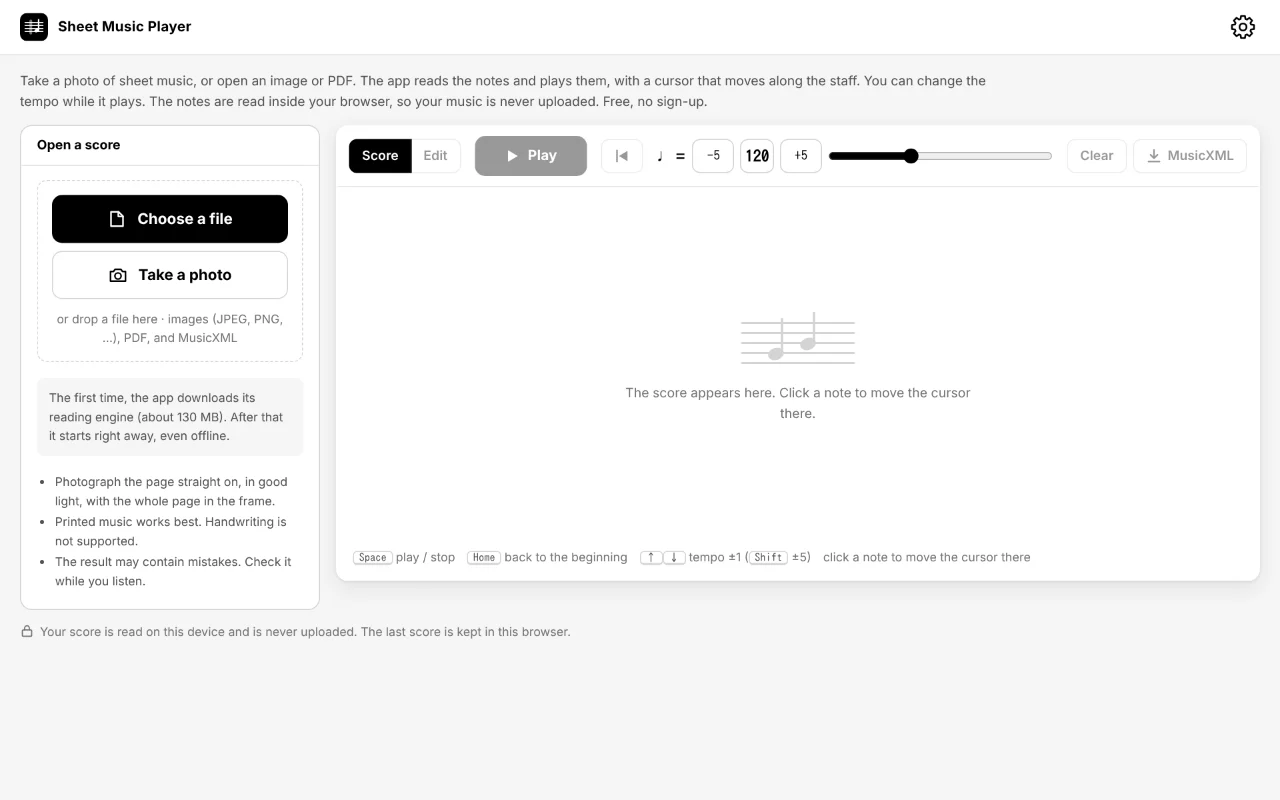
There are three ways to open sheet music:
- Choose a file: an image (JPEG, PNG, WebP, …) or a PDF. Up to the first 12 pages of a PDF are read.
- Take a photo: uses the computer's webcam. Hold the page flat and fill the frame with it.
- Drop a file on the panel.
A photo of an open book with two pages side by side is split and read as two pages, left page first. To read several photos as one piece, combine them into one PDF first. A MusicXML file (.musicxml, .mxl, .xml), for example one saved from this app or from MuseScore, opens immediately without reading.
How you take the photo makes a difference. See how to photograph sheet music for better results.
2. Wait for the reading
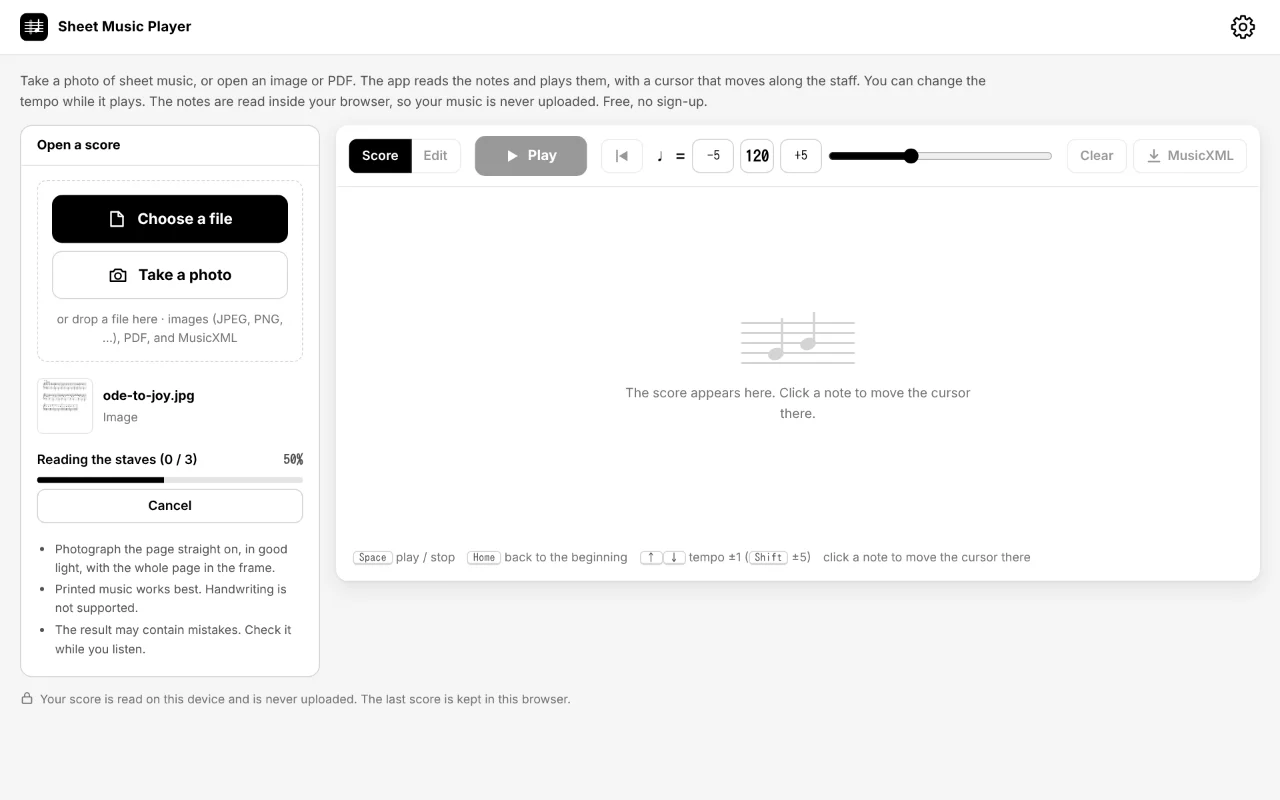
The app first looks for the tempo marking at the top of the page, then finds the staves and notes, and finally reads the staves one by one. This takes roughly 10 to 60 seconds per page, depending on the computer and the number of staves. The first time, the download of the engine comes before this. You can cancel at any time.
3. Play and follow the cursor
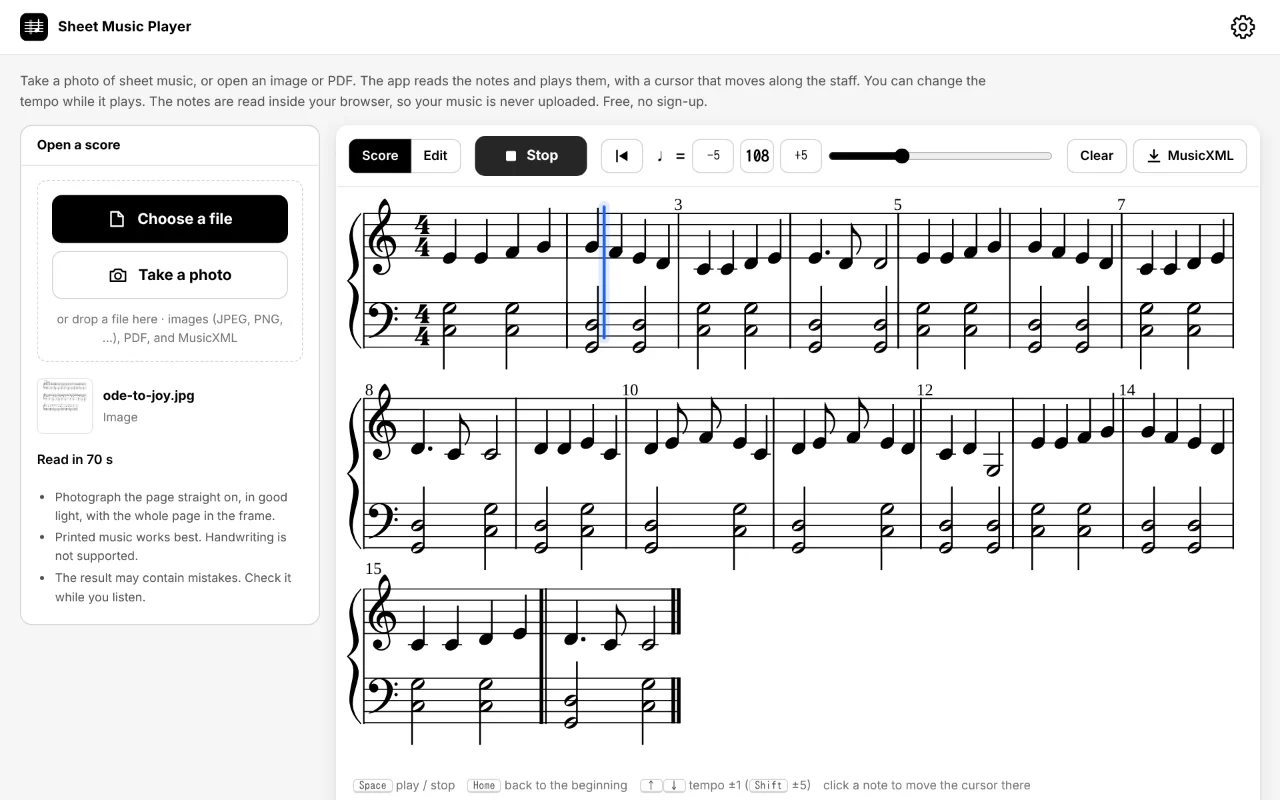
When the reading is done, the score is drawn again from the notes the app read. Press Play to start; a blue cursor moves along the staff with the sound. Press Stop to stop where you are, and the back to the beginning button (⏮) to go to the start.
- Click a note to move the cursor there. Play then starts from that note, which is handy for repeating a difficult passage.
- Keyboard: Space play / stop, Home back to the beginning, ↑ ↓ tempo ±1 (with Shift, ±5).
Compare what you hear with the printed page. The reading can contain mistakes, and listening is the quickest way to find them.
4. Change the tempo
The tempo starts at the metronome mark found on the page (for example ♩ = 108). If there is only a word such as Andante, the usual tempo for that word is used, and if there is nothing, ♩ = 120. Change it with −5 / +5, by typing a number, or with the slider (20–300), even while it plays.
The number means quarter notes per minute, and the whole piece plays at one tempo. For a dotted-quarter beat in 6/8, or for tempo changes in the middle of a piece, see tempo markings and BPM.
5. Fix mistakes
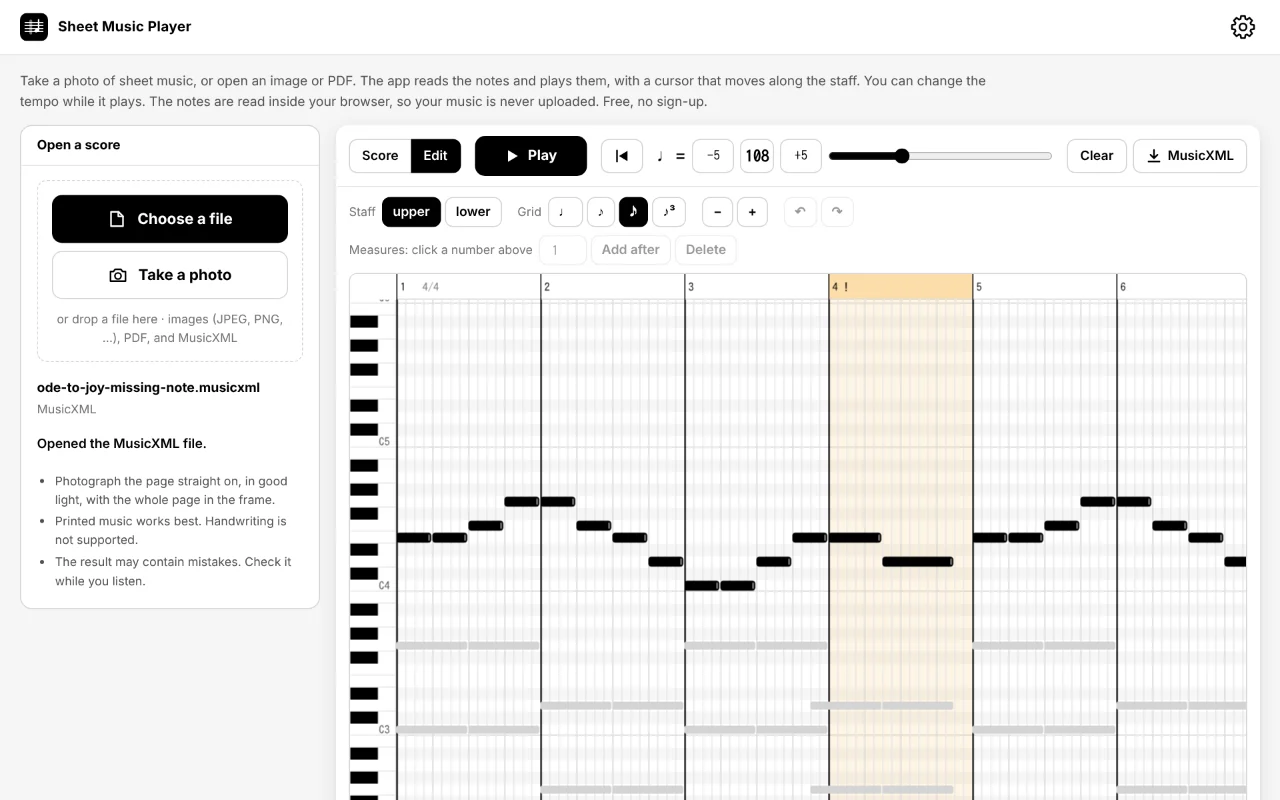
Switch to Edit to see the notes as boxes on a piano roll: up and down is the pitch, left to right is time. Drag a box to move it, drag its right edge to change its length, click an empty spot to add a note, and right-click (or press Delete) to remove one. Click a measure number to add or delete measures. Measures marked ! had too many or too few beats when they were read, so start with those.
Switch back to Score to redraw the staff with your changes. For the common mistakes and how to fix each one, see how to fix reading mistakes.
6. Save the result
The MusicXML button saves the notes as a .musicxml file. You can open it again in this app, or in MuseScore and most other notation programs to print it, transpose it, or export audio. See what MusicXML is and how to use it.
The last score and its tempo are also kept in the browser, so they are still there the next time you open the app. Clear removes the score from the screen and from the browser.
When it does not work
| Message or problem | What to try |
|---|---|
| “This browser cannot run the reading engine” | Use the latest Chrome or Edge on a computer. |
| “No staves or notes were found” | Use a sharper photo or a scan, with the whole page in the frame and the page filling most of it. |
| “The browser ran out of memory” | Close other tabs, or read fewer pages at a time. |
| “The reading engine could not be downloaded” | Check the connection and try again. This is needed only the first time. |
| The notes or the tempo are wrong | Fix them in Edit, or set the tempo by hand. A better photo often helps more. |
More answers are in the FAQ.