How to use Vocal Ladder
Vocal Ladder plays the piano part of a vocal warm-up for you. It plays an exercise such as Do-Re-Mi-Fa-Sol-Fa-Mi-Re-Do, then moves it up (or down) a half step and plays it again, until it reaches the key you chose. This guide walks through every part of the screen.
Start in three steps
- Choose an exercise pattern, such as Do-Re-Mi-Fa-Sol.
- Choose the start key and the end key. The key is the note that is Do. For example, from C4 (middle C) to G4.
- Tap Start. The piano plays a chord, then the melody, and moves up a half step each time until it reaches the end key.
The screen at a glance
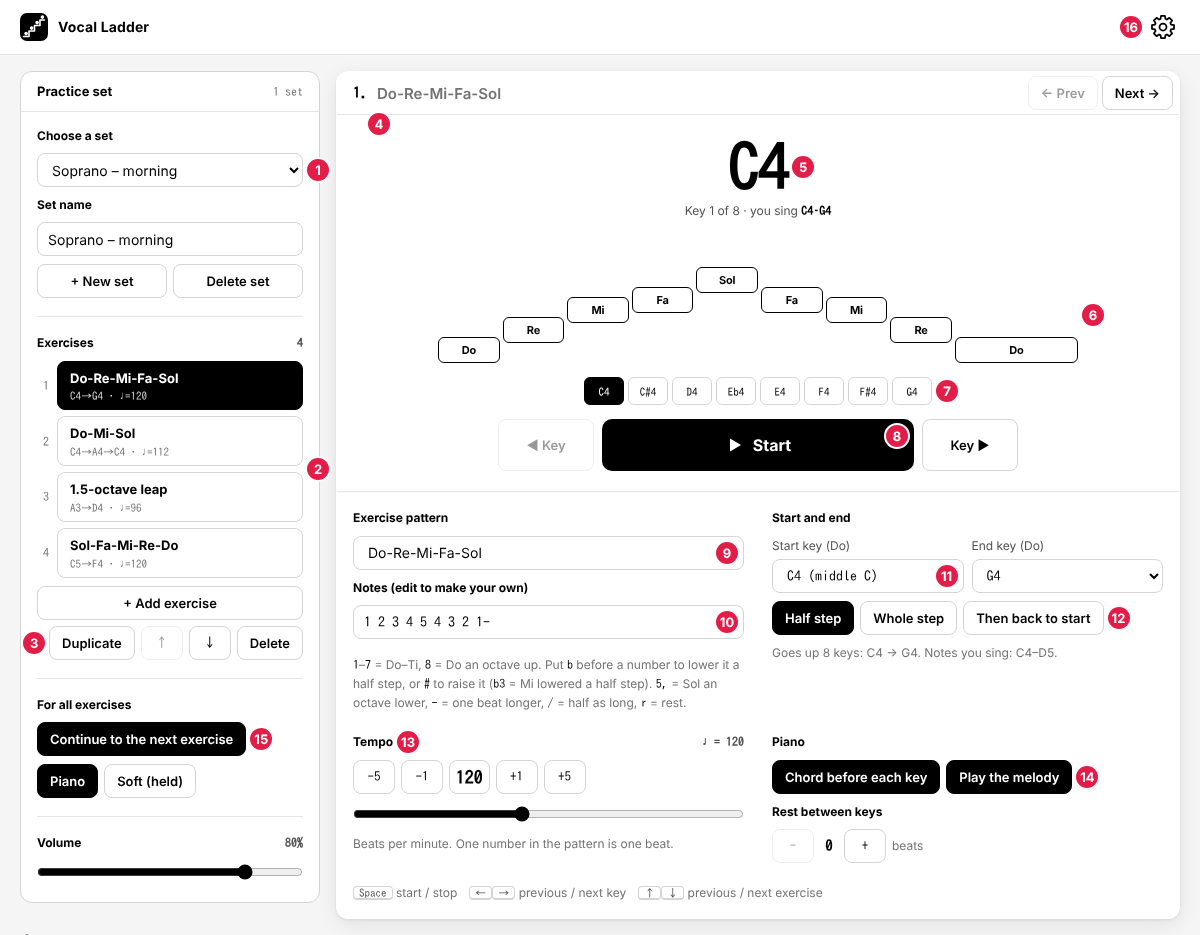
- Choose a set – Switch between practice sets, for example by purpose or voice type. The set name is in the box below it.
- Exercises – The exercises of the set, in the order they play. Each shows its keys and tempo. Tap one to select it.
- Exercise buttons – Add an exercise after the selected one, duplicate it, move it up or down, or delete it.
- Title – The exercise's name. If you leave it empty, the name of its pattern is shown.
- Current key – The key being played (the note that is Do), which key it is out of how many, and the notes you sing in it.
- Notes – The notes of the exercise, drawn at their height. Wider boxes are longer notes. The note being played turns black.
- Row of keys – Every key the exercise goes through. Tap one to play from that key.
- ◀ Key / Start / Key ▶ – Start or stop, and go back or forward one key.
- Exercise pattern – The built-in patterns, and your own saved patterns at the top.
- Notes – The pattern written as numbers. Edit it to make your own.
- Start key and end key – From C2 to C6. The text below shows how many keys it goes through and the range you sing.
- Half step / Whole step / Then back to start – How far to move each time, and whether to come back the same way.
- Tempo – Beats per minute, from 30 to 240. One number in the pattern is one beat.
- Piano – Whether to play a chord before each key and the melody with you, and the rest between keys.
- For all exercises – Whether to continue to the next exercise, the sound (piano, or a soft held tone), and the volume.
- ⚙ Settings – How to use, these guides, export and import, privacy, about, and deleting all saved data.
While it plays
- For each key, the piano plays the chord of that key for 2 beats, then the melody. The next key's chord comes right after the last note, so the exercise keeps going in time.
- To repeat a key, tap ◀ Key. To skip ahead, tap Key ▶, or tap a key in the row of keys.
- When you stop, the key you were on stays selected, and Start continues from there. To start from the beginning, tap the first key in the row.
- If you change the pattern or the keys while it plays, it starts again from the beginning of the current key. Changing the tempo does not interrupt it.
- With Continue to the next exercise on, the next exercise in the set starts when one ends, so a whole routine plays without touching the screen. When it is off, playing stops at the end of the exercise.
- On a computer: Space starts and stops, ← → move one key, and ↑ ↓ move between exercises.
Pattern, start and end, tempo, piano
Pattern
Choose a built-in pattern, or type your own notes as numbers: 1–7 are Do to Ti, 8 is Do an octave up, and a - after a number makes it one beat longer. See writing your own patterns for everything you can write.
Start and end
The start key and the end key are the note that is Do. If the end is higher than the start, the exercise goes up; if it is lower, it goes down. The text under them shows the notes you actually sing, which is wider than the keys: Do-Re-Mi-Fa-Sol from C4 to G4 goes up to D5. See warm-up scales and your range for how to choose.
- Whole step moves two half steps each time, so it covers the same range in fewer keys.
- Then back to start goes to the end key and comes back down the same way.
Tempo and piano
- Tempo counts beats per minute. The default is 120. Slow it down for wide leaps or when you are just starting.
- Chord before each key plays the key's chord (Do-Mi-Sol with a bass note) for 2 beats, so you hear the new key before you sing.
- Play the melody plays the notes with you. Turn it off to sing alone over the chord.
- Rest between keys adds silent beats before the next key, for a breath.
Practice sets
- A practice set is a list of exercises. Make as many as you like, by purpose, voice type, or day, with + New set, and type its name in the set name box.
- + Add exercise adds one after the selected exercise, with the same keys and tempo, so a series is quick to build.
- To delete a set, tap Delete set twice within 4 seconds.
Saving your own patterns
- Type your own notes in the notes box, tap Save this pattern, and give it a name. It goes to the top of the pattern list as one of your patterns, and you can choose it in any set and exercise.
- Saving with the name of a pattern you already saved overwrites that pattern.
- Choose a saved pattern to Rename it or Delete pattern (tap twice). Exercises that use a deleted pattern keep their notes.
Sharing sets as a file
- Open ⚙ and choose Export all sets. All your sets and saved patterns are saved in one small file (a .json file). On an iPhone, the share menu opens instead.
- Send the file by email or a chat app.
- Whoever receives it opens Vocal Ladder, opens ⚙, chooses Import sets, and picks the file. The sets and patterns are added; nothing they already have is replaced, and sets they already have are skipped.
The same steps move your sets to another device of your own. As one example of sharing, a voice teacher can put a week's warm-ups in a set and send the file to students.
On a phone
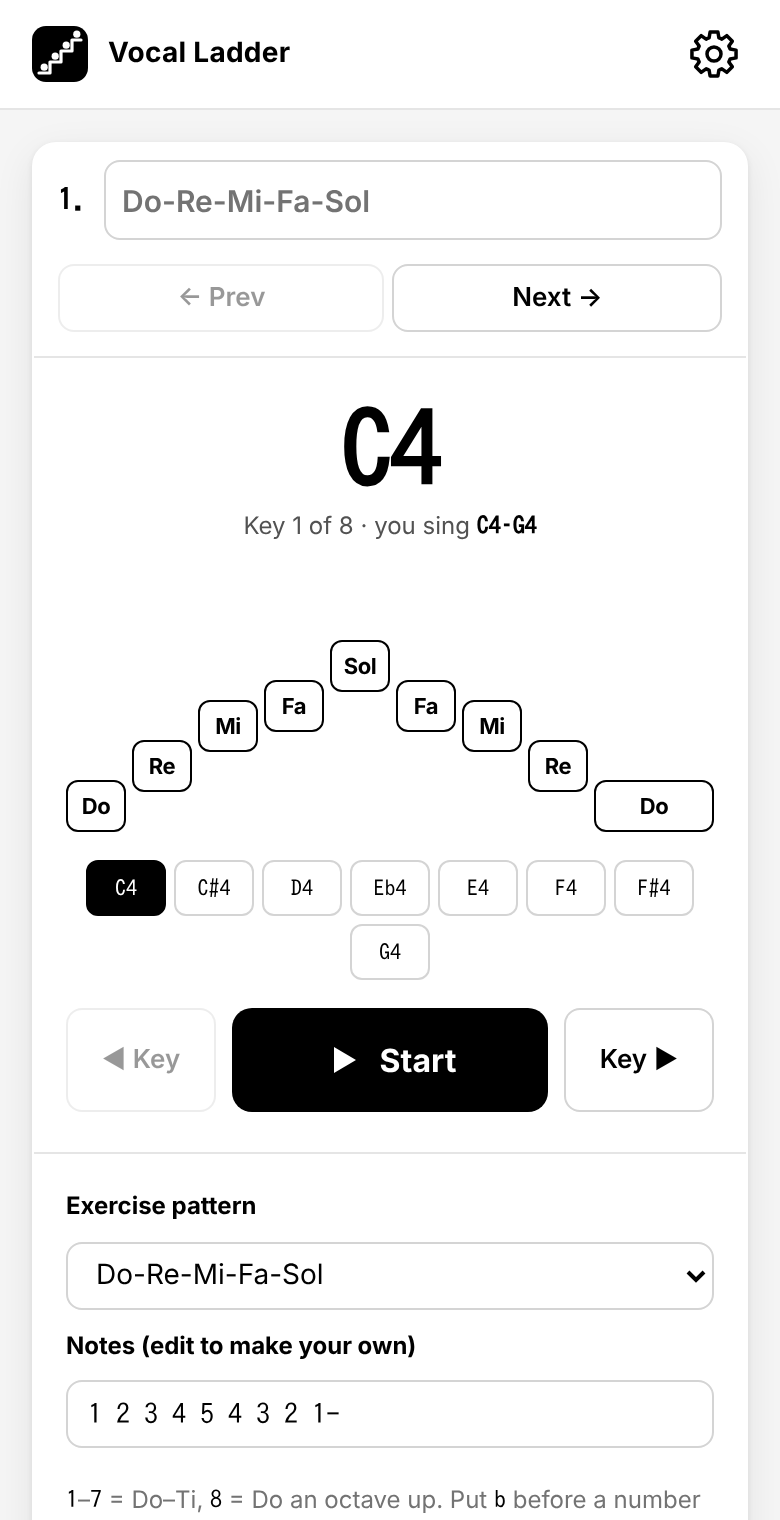
While it plays, the app asks the phone to keep the screen on. If you hear nothing on an iPhone, check the volume, and turn off silent mode if it is on.
Saving, installing, and offline use
- Your sets and patterns are saved in this browser on this device. They are not sent anywhere. Use Export to keep a copy or to move them to another device.
- ⚙ → Delete all saved data returns the app to how it looks when first opened.
- To use it like an app, add it to your home screen: on an iPhone, Share → Add to Home Screen; on Android or a computer, use “Install app” in the browser menu. After you have opened it once, it also works offline.