Chords, tempo, and key change
Besides separating a song, Band Stem Mixer can show its chords on every beat, its tempo (BPM), and move it to another key. The chords and the key change work on the separated parts, so they are available once the song is separated.
Finding the chords and the tempo
Press “Find chords & make harmony” above the parts. The app first finds the beats and the tempo of the song, then a chord for each beat (quarter note). They appear above the parts: BPM next to the button, and the chord names along the top of the scrolling view, with a small tick at every beat. Drag the view sideways to read ahead. The same button also makes a harmony part; if you only want the chords, mute the two harmony parts.
How it works, briefly:
- Beats – where new sounds start (attacks) in the whole song, the time between them that repeats most, and then the beats that best fit both. The same method as the beat detection in Loop Trainer, this site's practice player.
- Chords – how strong each of the 12 notes is in the bass and “Other” (guitar, keys) parts during each beat, compared with every major and minor chord. A chord does not change every beat for no reason, so the result is smoothed over the beats.
Only major and minor chords are found automatically: a C7 shows as C, an Am7 as Am or C. Add the 7ths and other types by editing.
Editing the chords
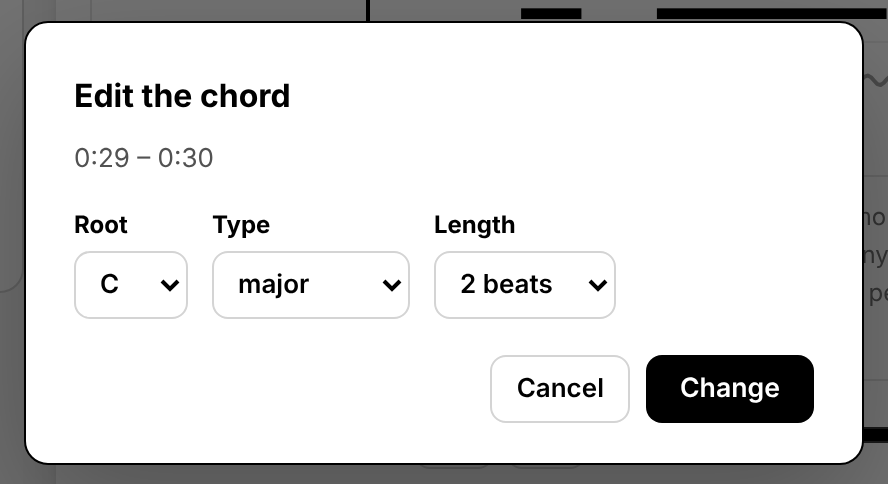
- Tap the beat where the chord is wrong, in the chord row at the top of the view.
- Choose the root (C to B; blank for no chord), the type, and the length: how many beats from there, 1 to 16. The length starts at “until this chord ends”, so fixing a wrong chord is one tap on “Change”; choose 1 beat to change just that beat.
- Press “Change”. To use the new chords in the harmony, press “Remake the harmony”.
Types: major, minor (m), 7, maj7, m7, add9, dim, dim7, m7b5, aug, sus4. “Back to the estimated chords” undoes all your edits. The chords are not kept after you reload the page; write down the ones you need.
Changing the key
Use − and + next to “Key (all but drums)” above the parts. Each press moves the song a semitone, up to 12 semitones (an octave) either way.
- Vocals, bass, and other move; the drums do not, since they have no key, and moving them would only change their sound.
- The tempo stays the same. Only the pitch changes.
- The chord names follow: at +2, an Am shows as Bm. The harmony is made again for the new key.
- It takes a few seconds (longer for long songs and on phones); the song keeps playing in the old key until the new one is ready. Press several times in a row and it works once, after the last press.
- Saved MP3 files of the moved parts say the key in their name, for example
practice-song - Bass (key +2).mp3.
Ways to use them
| You want to | Do this |
|---|---|
| Sing a song that is too high or low | Move the key until the melody sits well in your voice, mute the vocals, and sing along. Save the mix as your karaoke track. |
| Play along with a song tuned a half step down | Press + once: the band is in standard tuning again, and you can play without retuning. |
| Play a song in the key your band uses | Move it to that key; the chord names show what to play in the new key. |
| Learn the chords by ear | Solo “Other” or “Bass”, follow the chord row, and check each chord by ear. Fix the ones that sound wrong. |
What to expect
- The chords are an estimate. They are usually right for clear major and minor chords, and miss more often with 7ths and tensions, chords over a different bass note, quiet or sparse parts, and heavy distortion.
- The tempo can come out double or half (60 instead of 120), and songs without a steady beat may get no beats at all; then the chords are placed every half second and the app says so.
- Songs that change tempo or key are treated as one tempo and one key.
- A key change is processed sound. Small changes (one or two semitones) sound natural; large ones make voices and instruments sound thinner or deeper, and sharp attacks a little softer.
- A moved key keeps a second copy of three parts in memory. On a phone with a long song, it can run out of memory.
For slowing a song down without changing the pitch, or looping a section, use Loop Trainer with the MP3 files you saved.