How to use Band Stem Mixer
Band Stem Mixer splits a song into four parts with AI — vocals, drums, bass, and other — and lets you mix them for practice. This guide walks through every part of the screen.
Start in three steps
- Choose a song. Tap “Choose an audio file” and pick an MP3, WAV, M4A, or FLAC file, or drop it on the box.
- Press “Separate into 4 parts”. Wait until the bar is full. Keep the screen open.
- Press play and mix. Mute your own part with M and play along with the rest of the band.
Choosing a song and separating it
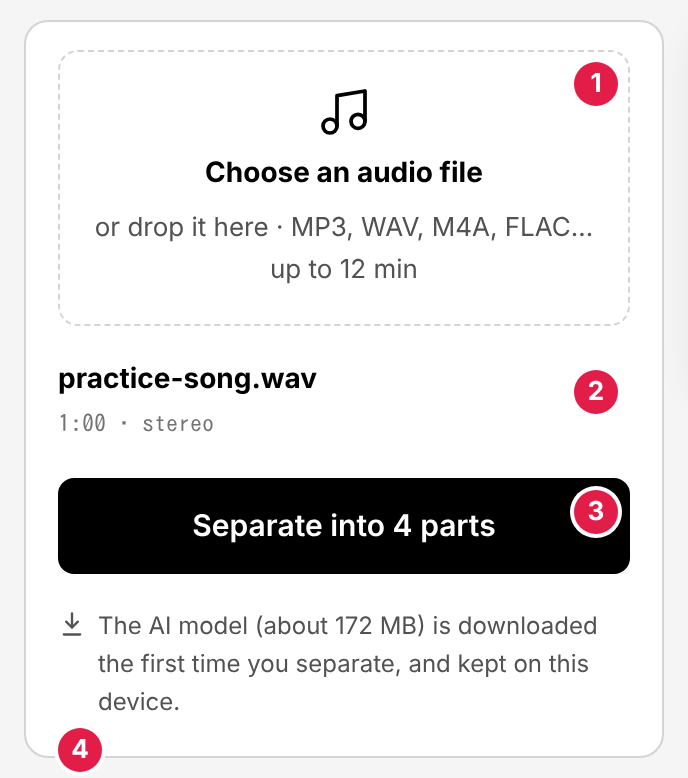
- Choose an audio file – Any format your browser can play: MP3, WAV, M4A (AAC), FLAC, Ogg, and others. Songs up to 12 minutes (8 minutes on phones and tablets, which have less memory). The file is read in your browser and never uploaded.
- The song – The file name, the length, and whether it is stereo or mono.
- Separate into 4 parts – Starts the separation. After it finishes, the button becomes “Separate again”.
- The AI model – Whether the AI model is already saved on this device. If not, it is downloaded when you press the button.
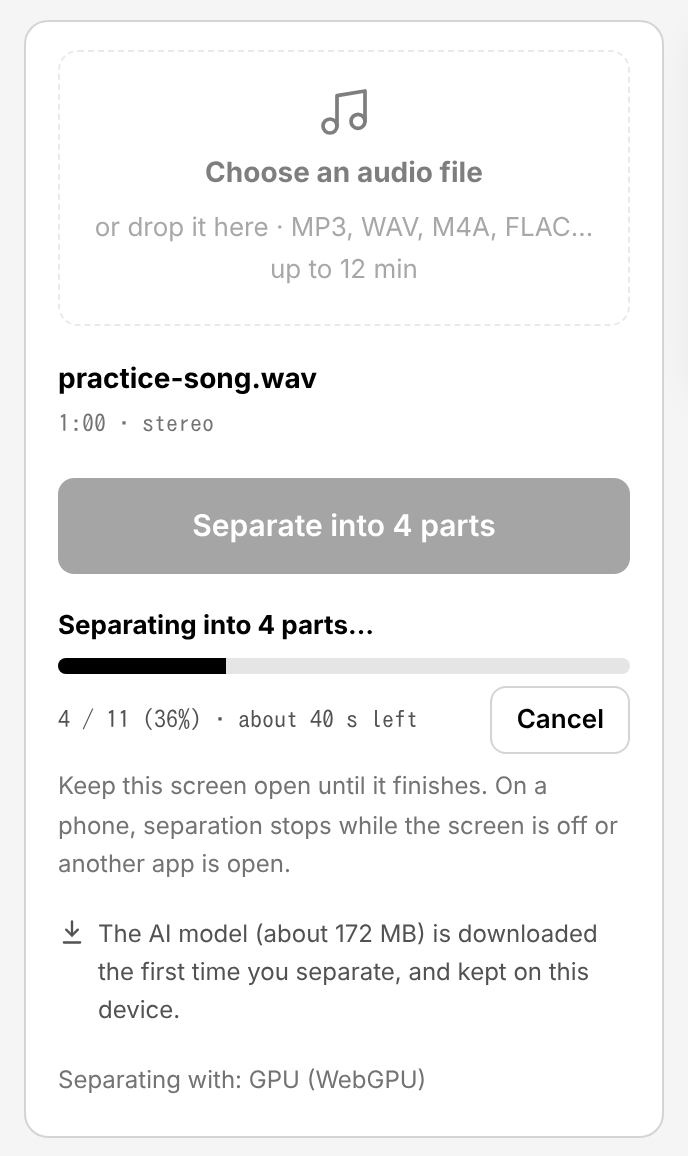
The bar shows how many sections are done and about how long is left. How long it takes depends on the device: on a recent computer, about the length of the song or a few times longer; on a phone, longer. The line under the bar shows how the separation runs: on the GPU (WebGPU) when the browser supports it, otherwise on the CPU.
Keep the screen open until it finishes. On a phone, separation stops when the screen turns off or you switch to another app. If it stops with a memory error, the app tries again with settings that use less memory.
The first time: downloading the AI model
The first time you separate a song, the browser downloads the AI model (about 172 MB) and the separation engine (about 14 MB, or 27 MB with the GPU). They are kept on your device, so the next time there is no download and the song panel says “The AI model is saved on this device”.
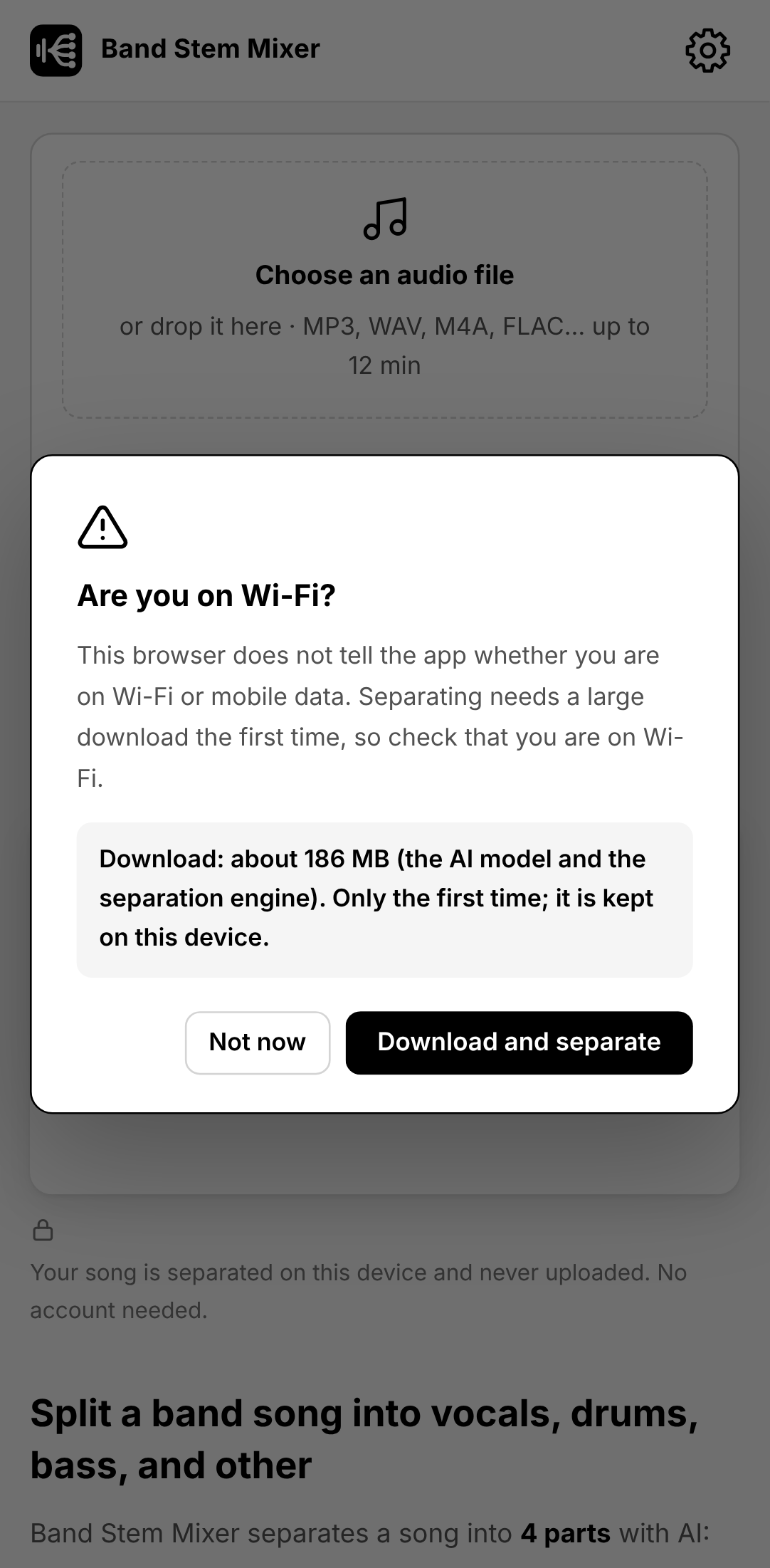
Because the download is large (about 186 MB in all), the app asks first when you seem to be on mobile data or have Data Saver on, and on phones and tablets whose browser does not say what kind of connection it has (such as iPhone and iPad). Choose “Not now” and connect to Wi-Fi if you are not on Wi-Fi.
To free the space, open ⚙ → “Delete the AI model”. It is downloaded again the next time you separate a song.
The mixer
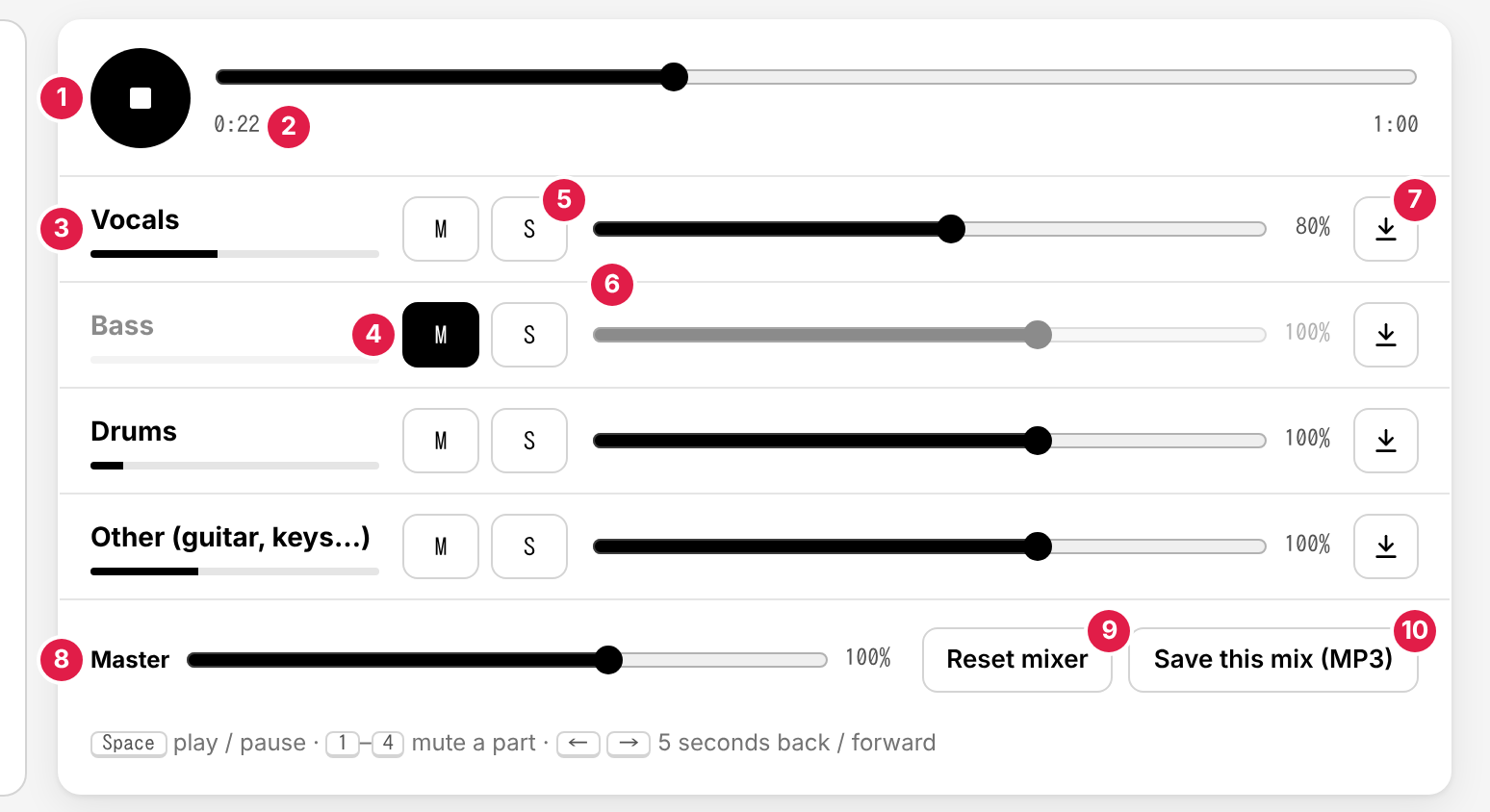
- Play / Stop – The button shows ■ while it plays. Press it again to stop; the next play starts from where it stopped.
- Position – Drag to move through the song.
- The part and its level – The bar under the name moves with the sound of that part.
- M (mute) – Silences that part. Here the bass is muted.
- S (solo) – Plays only the parts whose S is on. You can solo more than one part, for example bass and drums together. While any S is on, M is ignored.
- Fader – The volume of the part, from 0% to 150%.
- ↓ (save the part) – Saves that part alone as an MP3 file.
- Master – The volume of the whole mix.
- Reset mixer – Puts every part back to 100% and unmuted.
- Save this mix (MP3) – Saves what you hear now as one MP3 file.
The faders, M, and the master volume are remembered for next time; S is not, so you never start in solo by mistake.
For practice ideas, see practicing with your part removed and hearing the bass and drums clearly.
Saving MP3 files
- Each part – The ↓ button on each row saves that part, as it was separated (the fader and M do not change it).
- Your mix – “Save this mix (MP3)” saves what you hear now: the faders, M, S, and the master volume.
- The files are 192 kbps MP3 (44.1 kHz stereo), named after the song, for example
practice-song - Bass.mp3. - The separated parts are not kept in the app. When you reload the page or choose another song, they are gone: save the files you want to keep, or separate the song again.
Saved MP3 files play on any device. You can separate a song on a computer and practice with the files on your phone.
On a phone or tablet
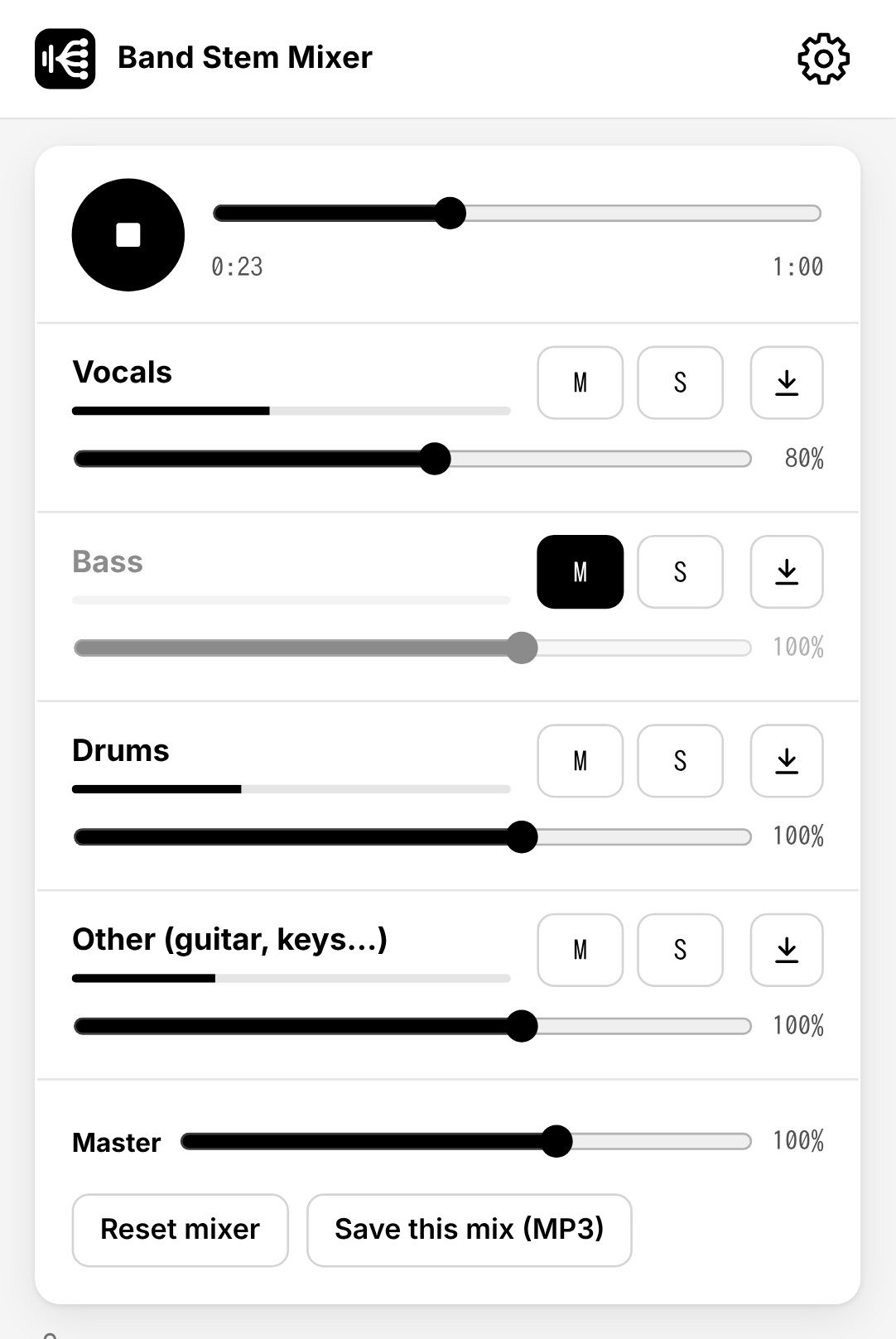
The mixer works the same on a phone. Separation needs a lot of memory, though: phones and tablets take longer, take songs up to 8 minutes, and some cannot finish at all.
iPhone and iPad: separation may stop partway because the device runs out of memory; the page then reloads. The app remembers the setting that stopped and uses another one next time. If it keeps stopping, separate the song on a computer and play the saved MP3 files on the iPhone.
Keyboard shortcuts
| Key | Action |
|---|---|
Space | Play / stop |
1–4 | Mute or unmute vocals, bass, drums, other |
← → | 5 seconds back / forward |
What is kept on your device
- The AI model and the separation engine (so they are downloaded once).
- The mixer settings: each part's fader and mute, and the master volume.
- The app itself, so it opens without a connection. You can add it to your home screen.
Your song and the separated parts are not saved and are never uploaded. See the privacy policy.