How to use Chord Transposer
Chord Transposer changes the key of a chord chart in your browser. This guide walks through every button and shares tips for getting clean results from PDFs and photos.
Transpose a chart in four steps
- Add the chart. Paste it into Input, or press the folder button to open a file.
- Choose the shift in Transpose. For example, +2 moves G to A. Not sure how far to move? See how many semitones between two keys.
- Choose sharps or flats in #/♭. For a flat key such as F, Bb, or Eb, choose Prefer b (see sharps or flats?).
- Use the result: preview, print, or save Output. Output updates as soon as you change anything, so you can try several keys quickly.
Only chord names change. Lyrics, titles, and notes stay as they are, and the app keeps each chord above the same word by adjusting the spaces around it. A Key: line at the top of the chart is updated too.
The screen at a glance
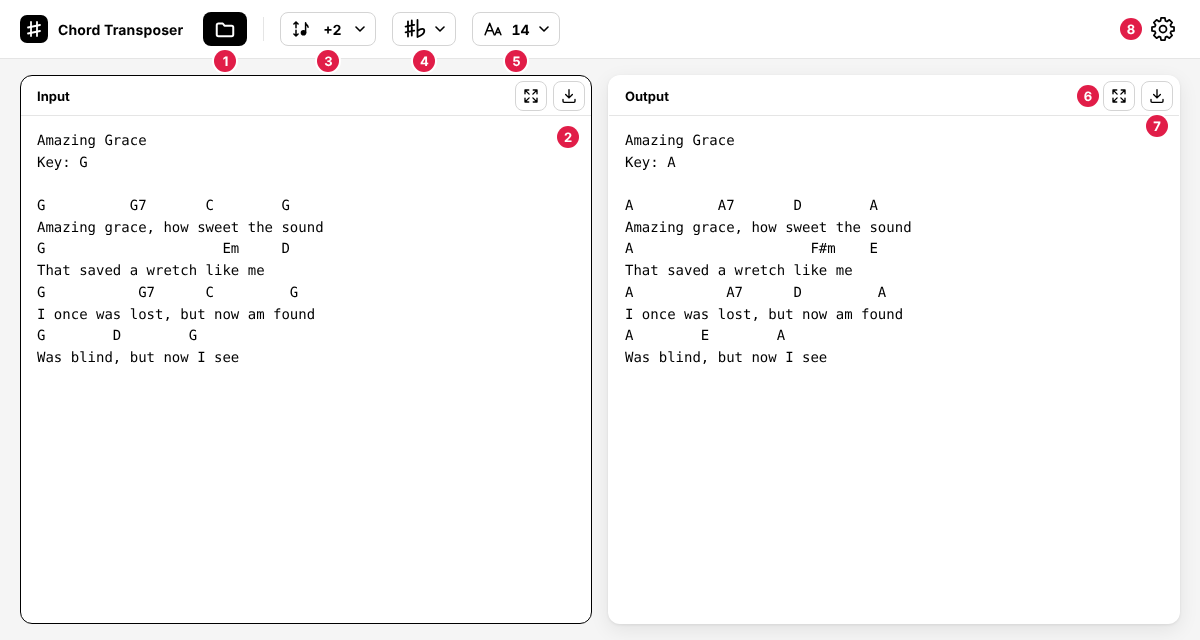
- Open (folder button): open a chord chart file.
- Input: paste or type a chord chart here. You can edit it at any time.
- Transpose: the number of semitones to move, from -12 to +12.
- #/♭: how to write the transposed chords — Original, Prefer #, or Prefer b.
- Size: the text size of Input and Output.
- Preview: show the whole chart at once, ready to print. Input and Output each have their own Preview button.
- Save: save Input or Output as a text file.
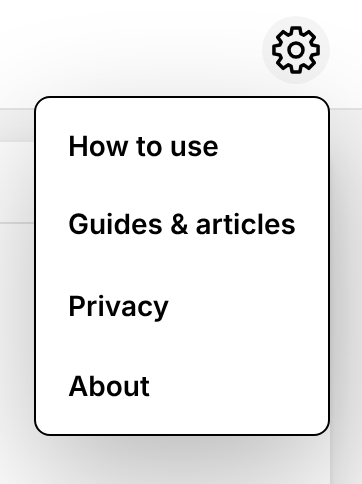
- Settings (gear button): a menu with How to use, Guides & articles, Privacy, and About (license information).
Opening files
| File | How it is read |
|---|---|
| Text (.txt, .cho, .chopro, .crd, .pro, …) | Read as it is. The most accurate option. ChordPro files work too. |
| PDF with text | The text is taken from the PDF, keeping the columns of chords and lyrics as far as possible. |
| Scanned PDF | Pages without text are read with OCR (text recognition). Up to the first 20 pages are read. |
| Image (PNG, JPEG, WebP, …) | Read with OCR for Japanese and English. |
When you open a file, Transpose goes back to 0 so the new song does not start in a shifted key. If the file does not seem to contain chords, the app tells you instead of loading it.
Files are processed only in your browser and are never uploaded. To read PDFs and images, the app downloads its reading libraries the first time you open one, so that step needs an internet connection.
Tips for photos and scanned PDFs
OCR guesses each character from the picture, so it can misread chords — for example, b as 6, or a bar line | as I. These tips make a big difference:
- Use text when you can. If the chart exists as a web page, a text file, or a PDF you can select text in, use that instead of a photo or screenshot.
- Shoot straight on. Hold the phone parallel to the page so the lines are straight and the page is flat. Curved pages near a book's spine are hard to read.
- Use even, bright light. Avoid shadows from your hand or phone and glare on glossy paper.
- Crop to the chart. Remove headers, photos, and other columns before opening the image.
- Use enough resolution. The chord letters should be sharp when you zoom in. Very small text in a large photo is often misread.
- Printed charts work best. Handwritten chords are usually not recognized.
- Scan at 300 dpi or more if you use a scanner, in black and white or grayscale.
After OCR, compare Input with the original and fix any mistakes in Input. Output follows your corrections immediately.
Check the result
The app recognizes most chord symbols: C, Am7, F#m7-5, Gsus4, Cadd9, Bbmaj7, slash chords such as D/F#, chords in brackets such as [G] or (Em), and bar lines like | C | G |. Things to check:
- Single capital letters in lyrics such as "A" or "I" in "A man walked in" are not changed. On a line that contains only chords, they are.
- Unusual symbols (for example, Nashville numbers or chords with words attached) may be left as they are. Edit them in Input or by hand.
- Directives in ChordPro, such as
{key: G}, are not changed. Update them yourself.
Preview, print, and save
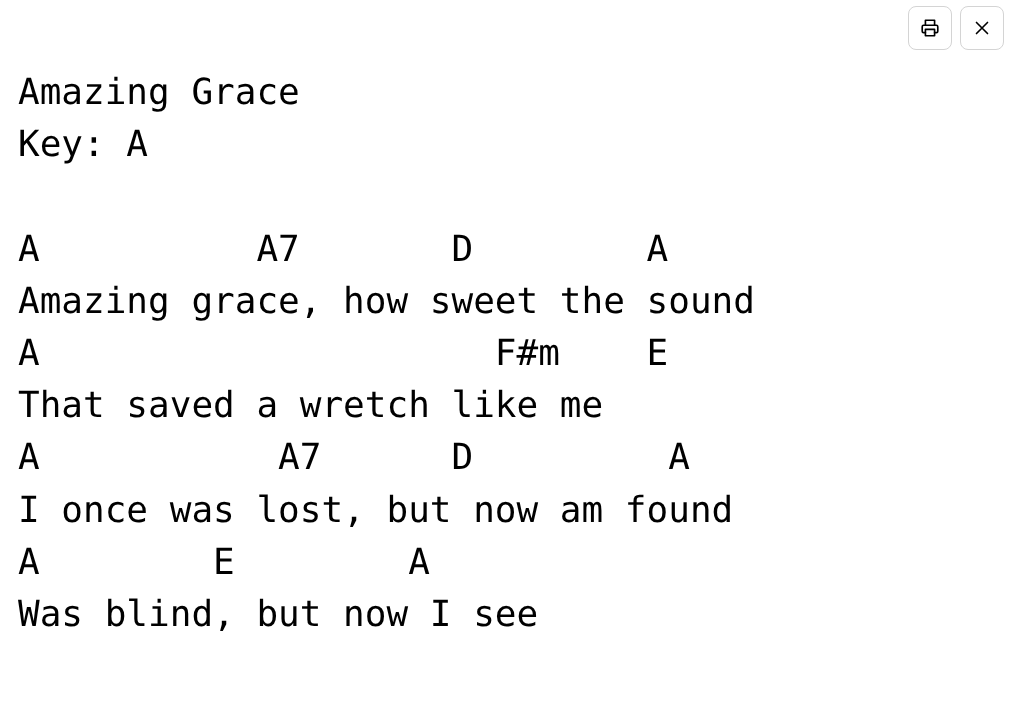
- Preview lays out the whole chart, in columns if needed, at the largest size that fits on one screen. On a computer it opens in a new window (allow pop-ups for this site if your browser blocks it). On phones and tablets it opens over the page; pinch to zoom.
- Print on a computer with your browser's print command (Ctrl+P, or ⌘P on a Mac) in the preview window. On phones and tablets, tap the printer button in the preview; on iPhone and iPad, then choose Print in the share menu that appears.
- Save writes a UTF-8 text file. The output file is named after the original file and the shift, for example
song_transposed+2.txt. In Chrome and Edge on a computer you can choose where to save it; other browsers save it to your downloads.
On a phone
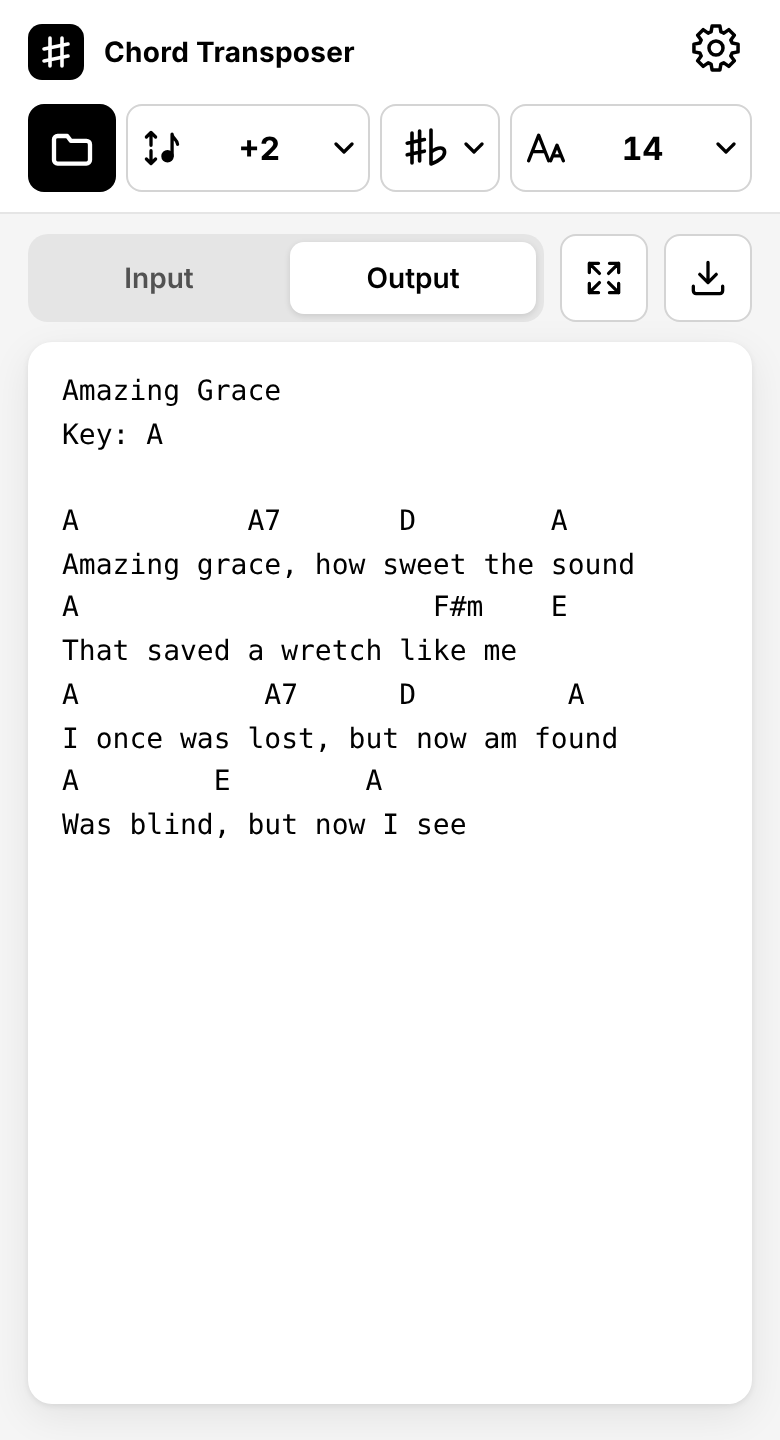
Tap the folder button to choose a file from your phone, or a photo from your camera roll. The Preview and Save buttons act on the tab that is open.
Install the app and use it offline
Chord Transposer is a web app you can add to your home screen:
- iPhone / iPad (Safari): tap Share, then Add to Home Screen.
- Android (Chrome): open the menu and choose Install app or Add to Home screen.
- Computer (Chrome / Edge): click the install icon in the address bar.
After your first visit, the app opens and transposes without an internet connection. The chart you were working on and your settings are kept in your browser, so you can pick up where you left off. Clear this site's data in your browser settings to remove them.
More questions? See the FAQ.