How to add note names to sheet music from a photo
Note Namer reads printed sheet music from a photo, an image, or a PDF and writes the name of every note under it: C D E, Do Re Mi, ドレミ, or 도레미, with the sharps and flats of the key signature. Print the page for practice, or send it to someone who is learning to read music. This guide walks through each step with screenshots.
What you need
- An iPhone with Safari (iOS 27.2 or later), an Android phone with Chrome (137 or later), or a computer with Chrome or Edge (137 or later). The reading engine needs a browser feature called JavaScript Promise Integration (JSPI); browsers without it show a message instead. Newer Firefox (153+) and Safari on a Mac or iPad (27+) also have it, but are untested.
- An internet connection the first time you read a photo. The app downloads its reading engine once (about 130 MB) and keeps it in the browser. After that it also works offline.
- Printed sheet music in standard notation. Handwritten music and tablature are not supported.
The app is free and needs no account. The notes are read inside your browser, so your sheet music is never uploaded.
1. The first screen
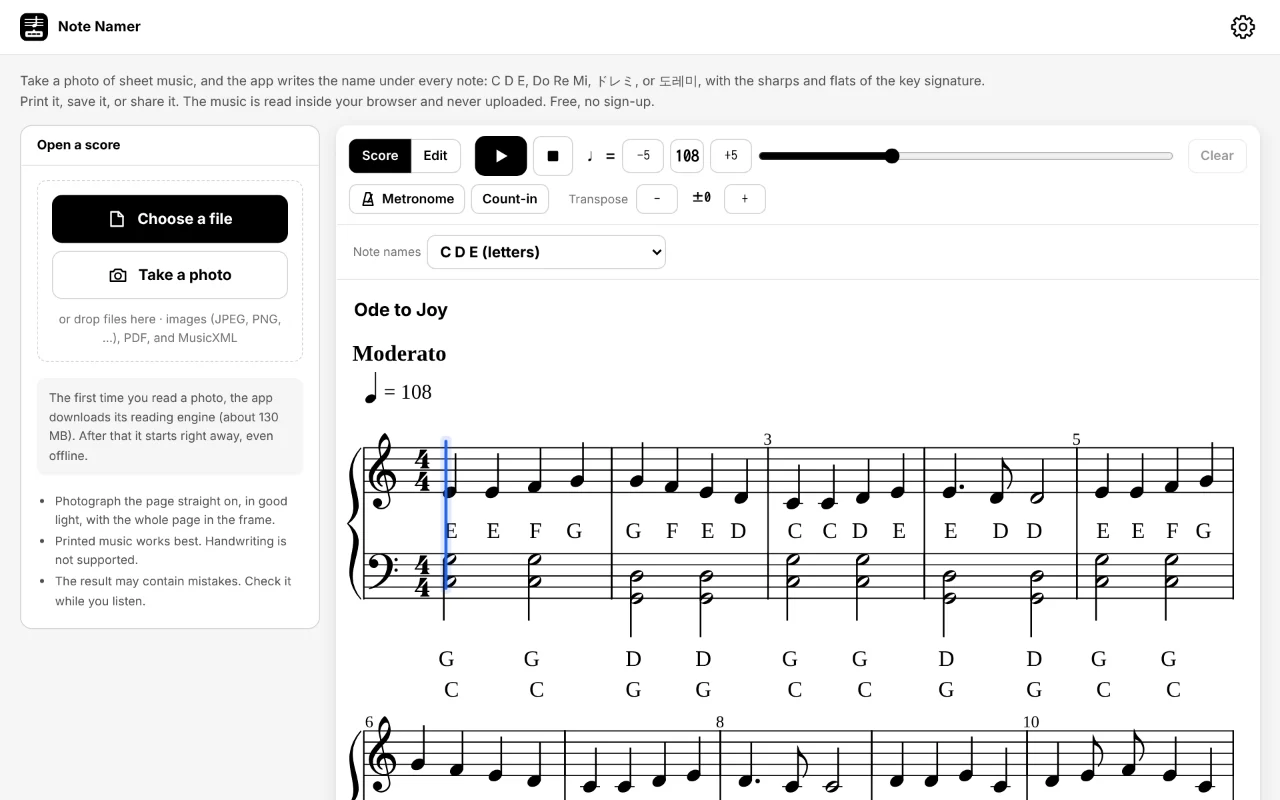
When no score is open, the app shows a sample, “Ode to Joy”, with a name under every note, so you can see what it does before using your own music. It needs no download. Opening your own score replaces it; the sample is not kept in Recent scores.
2. Open your score
There are three ways to open sheet music:
- Take a photo: on a phone, the camera opens. Hold the page flat, straight on, and fill the frame with it.
- Choose a file: images (JPEG, PNG, WebP, …) or PDFs.
- Drop a file on the panel (on a computer).
The files are added to a list (up to 12), numbered in the order you chose them. Drag the handle to change the order, then press Read the score: the files are read in that order and joined into one score. A MusicXML file (.musicxml, .mxl, .xml) opens immediately without reading.
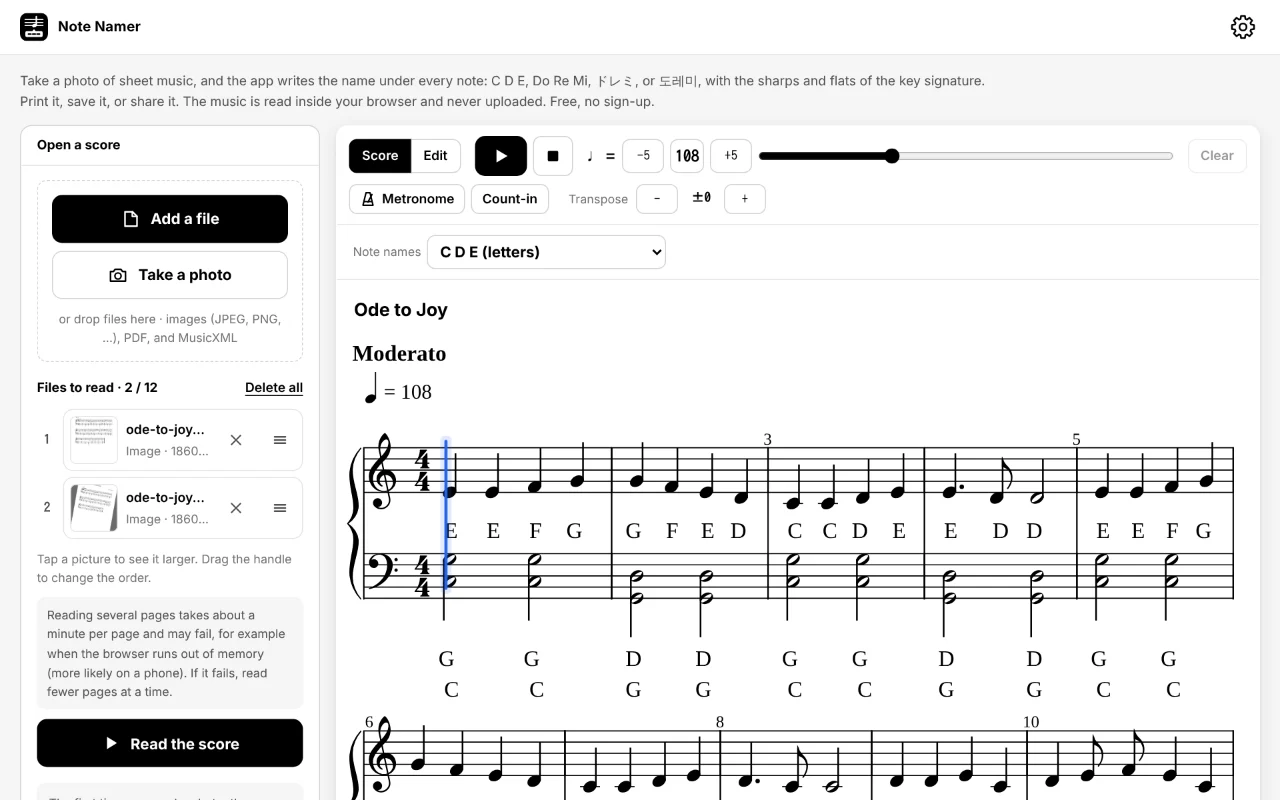
How you take the photo makes a difference. See how to photograph sheet music for better results.
3. Wait for the reading
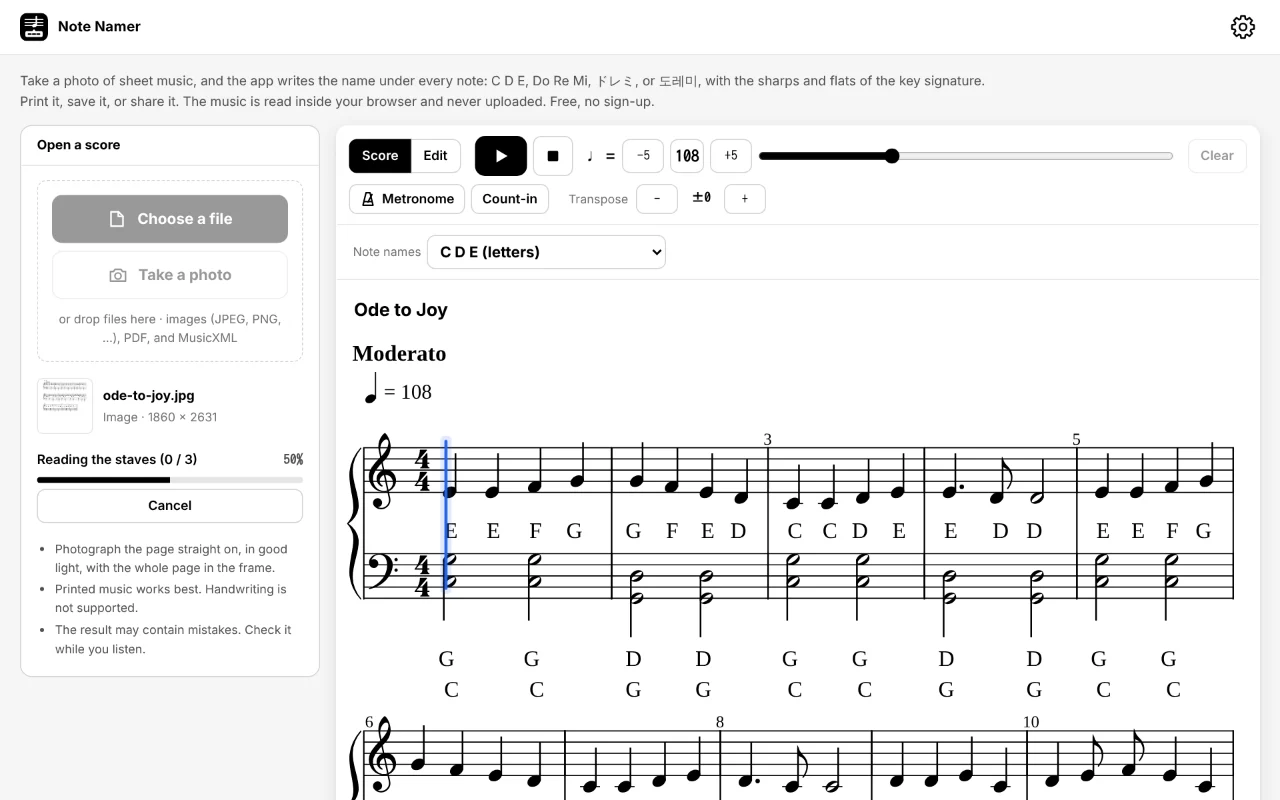
The app finds the staves and notes, then reads the staves one by one. This takes roughly 10 to 60 seconds per page, depending on the device and the number of staves. The first time, the download of the engine comes before this. You can cancel at any time.
4. Note names: choose how they are written
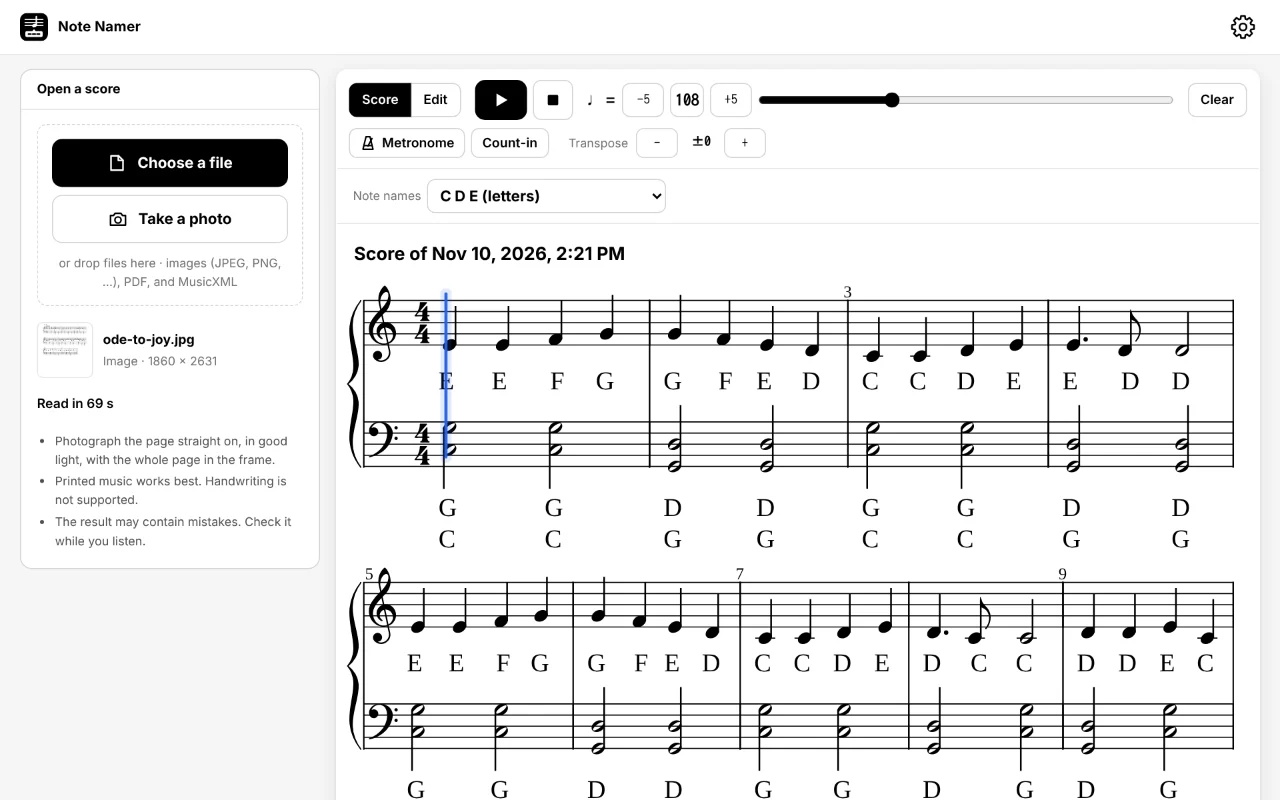
When the reading is done, the score is drawn again with a name under every note:
- The sharps and flats of the key signature and of the accidentals are included: in G major every F is named F♯. See sharps, flats, and key signatures.
- Chords get their names stacked, the highest note on top.
- A note tied from the one before gets no name (it is the same sound held on). Rests get no name.
- In a piano score, both staves get names.
Above the score, Note names chooses the system. Pitch names, where C is always Do: ドレミ (katakana), C D E, Do Re Mi, 도레미, German (C D E … H), or До Ре Ми. Names in the key, where the first note of the key is Do: ドレミ or Do Re Mi with movable Do, Chinese numbered 1 2 3, or Indian Sa Re Ga. The app remembers your choice. For what each system means, see the note name chart.
5. Check by ear
The reading can contain mistakes, and a wrong note gets a wrong name. Press ▶ to hear the score while a blue cursor moves along the staff: a wrong pitch or rhythm is easier to hear than to see. ❚❚ pauses, ■ stops and goes back to the beginning, and clicking a note moves the cursor there. Change the tempo with −5 / +5, the number, or the slider.
6. Fix mistakes
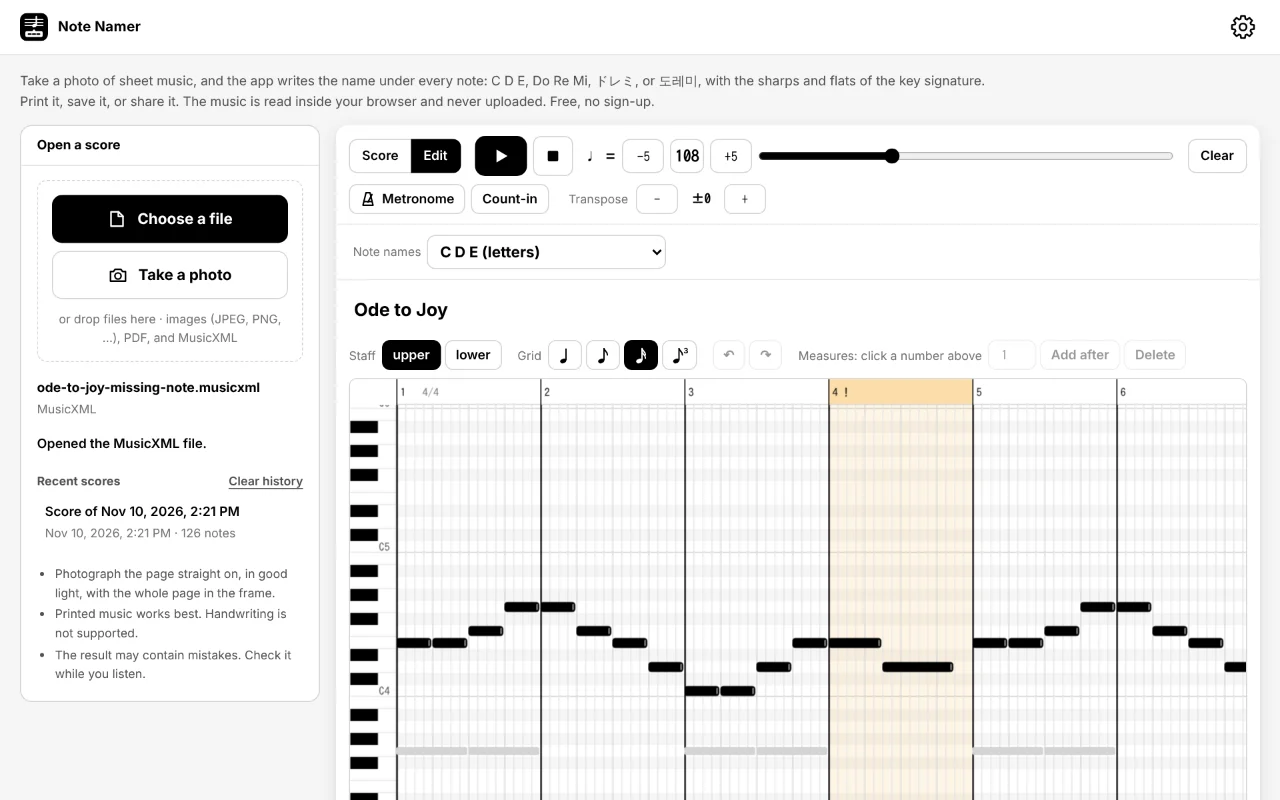
Switch to Edit to see the notes as boxes on a piano roll: up and down is the pitch, left to right is time. Drag a box to move it, drag its right edge to change its length, click an empty spot to add a note, and right-click (or press Delete) to remove one. Measures marked ! had too many or too few beats when they were read, so start with those. Switch back to Score: the staff and the names are drawn again with your changes. See how to fix reading mistakes.
7. Transpose
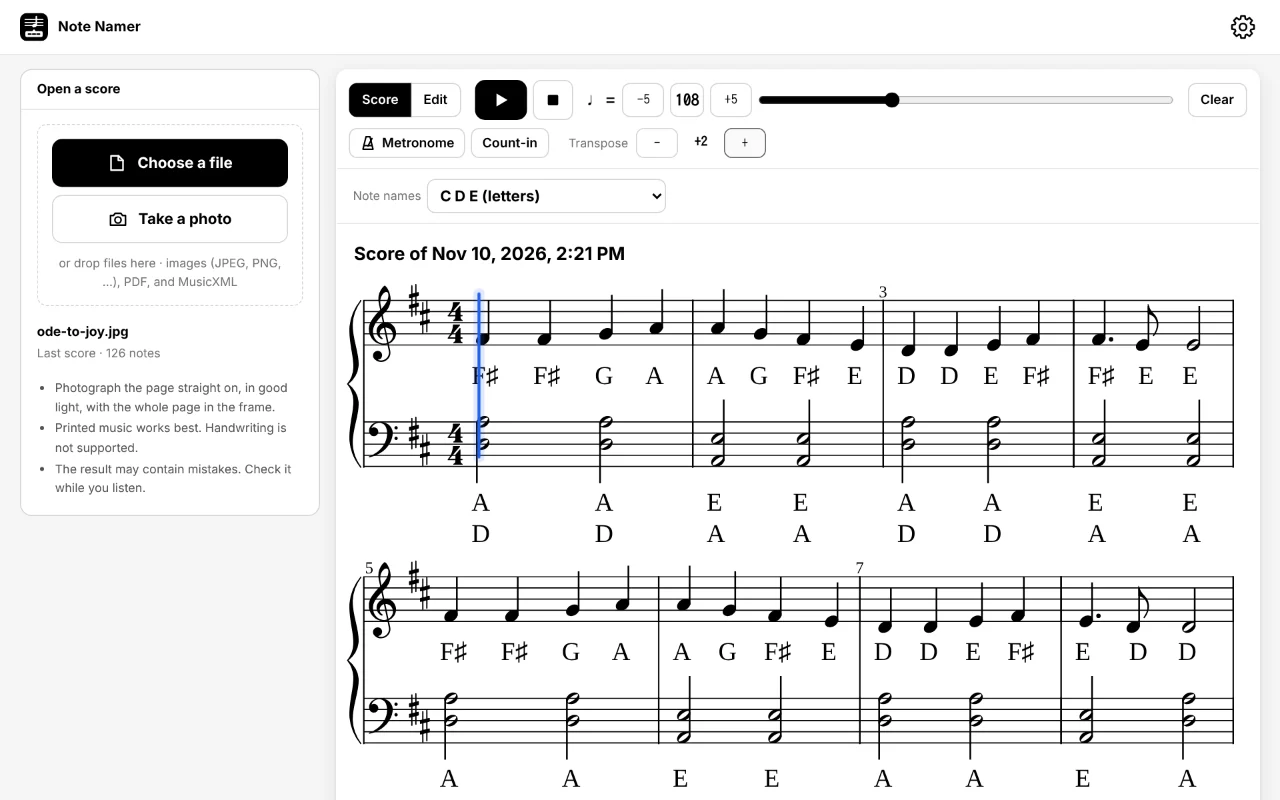
Press − and + next to Transpose, under the tempo, to move the music down or up a semitone at a time (up to an octave). The key signature changes, and the names are written for the new pitches. Next to it are Metronome and Count-in.
8. Print, save as images, share
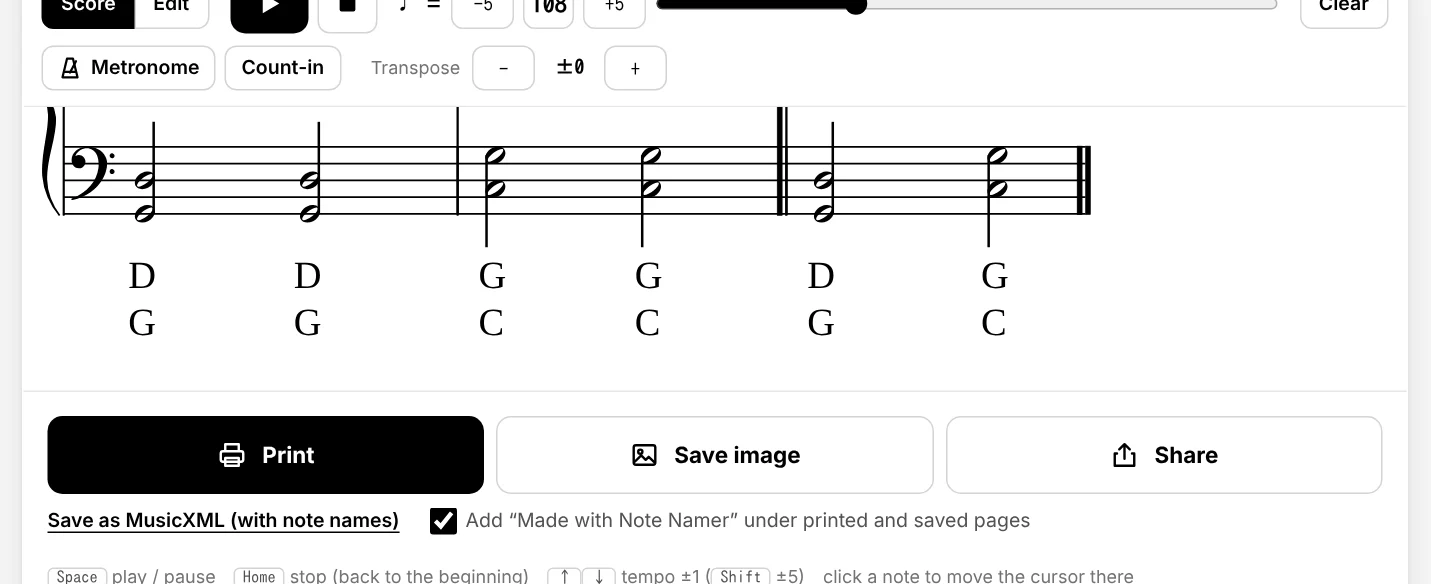
The three buttons under the score turn the score with its names into A4 pages:
- Print: prints the pages only (no buttons). To make a PDF, choose “Save as PDF” in the print dialog.
- Save image: saves each page as a PNG image.
- Share: sends the page images through your phone's share menu (messages, mail, …). If the browser asks for another tap, press Share again. Where images cannot be shared, they are saved and the app's link is shared or copied.
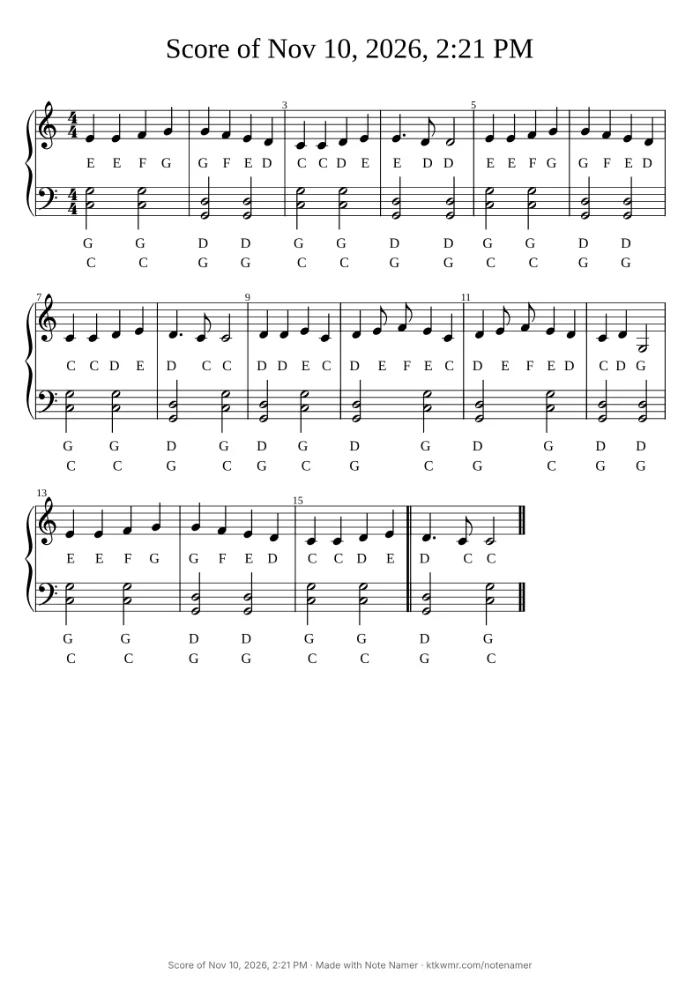
Each page has a small line at the bottom with the title and “Made with Note Namer”, so people who get the picture can find the app. To leave out the app's name, untick Add “Made with Note Namer” under printed and saved pages under the buttons. Save as MusicXML (with note names), next to it, saves a file that opens in MuseScore and most notation programs with the names as lyrics.
9. Recent scores
The title of the score is shown above it: the title written in a MusicXML file, or the date and time it was read. Click it to rename it; the printed pages use it. The last 10 scores are kept in the browser and listed under Recent scores; tap one to open it again. Clear history removes the list, and Clear removes the open score.
When it does not work
| Message or problem | What to try |
|---|---|
| “This browser cannot run the reading engine” | Update your iPhone to iOS 27.2 or later and use Safari, or use the latest Chrome on Android or Chrome or Edge on a computer. |
| “No staves or notes were found” | Use a sharper photo or a scan, with the whole page in the frame and the page filling most of it. |
| “The browser ran out of memory” | Close other tabs, or read fewer pages at a time. |
| All the names are a sharp or flat off | The key signature may have been read wrong. Compare the first line with the paper (see how to fix reading mistakes). |
| Share does not send the images | Press Share again. Some browsers can share only the link; the images are then saved to your downloads. |
More answers are in the FAQ.