How to use Loop Trainer
Loop Trainer plays an audio file you have, repeats the part you choose, and changes the speed and the key independently. This guide walks through every part of the screen.
Start in three steps
- Open a song. Tap “Open an audio file” and choose a file, or drop it on the waveform. MP3, AAC (m4a), and WAV work in every browser.
- Choose the part you want to learn. Drag across the waveform. The ends snap to the nearest beat.
- Set the speed and press Play. Tap 70% to hear it slower at the same pitch. It repeats until you stop it.
The loop, the speed, and the key are saved for that song. Open the same file next time and you pick up where you left off.
The player
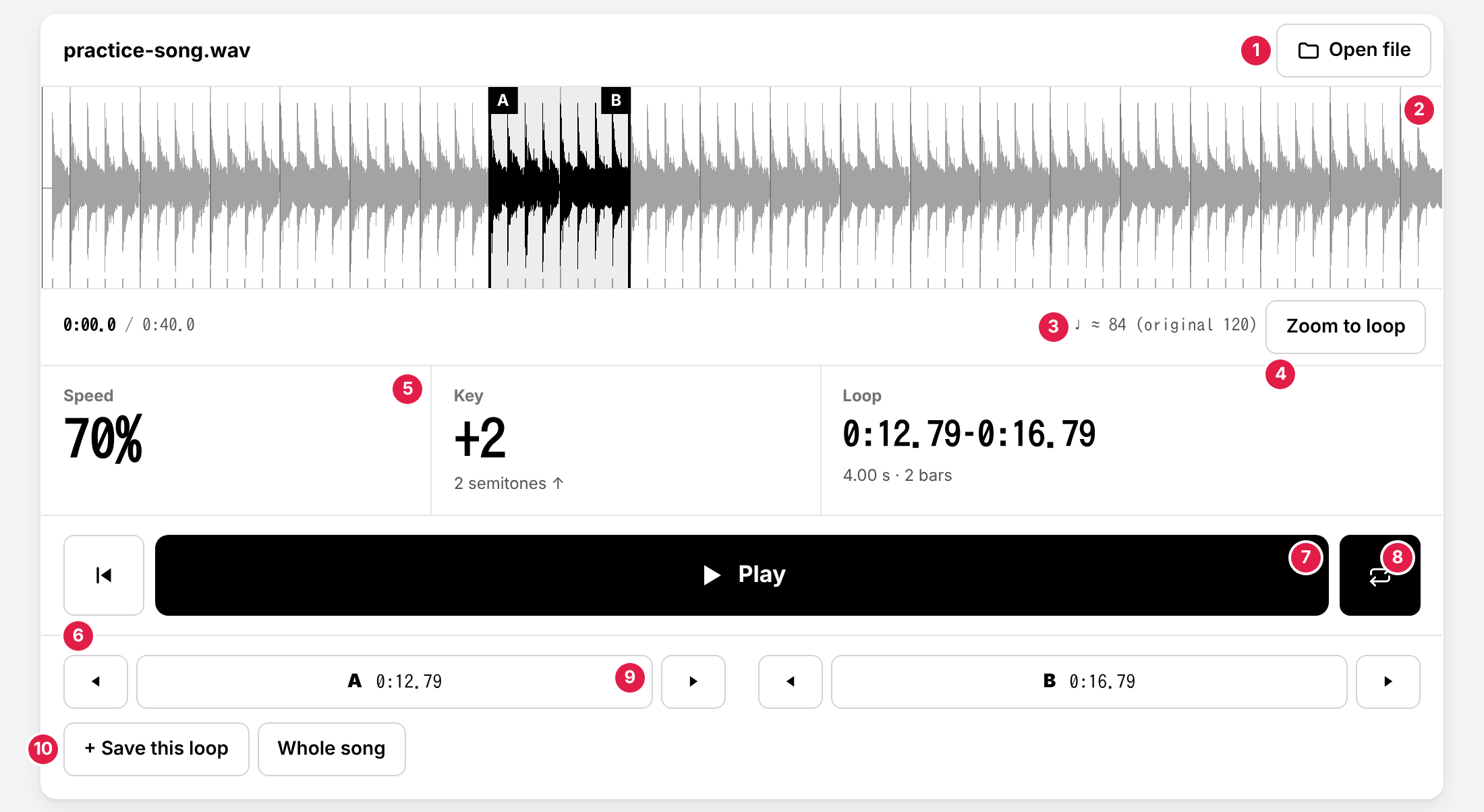
- Open file – Open another song. The file is read in your browser and never uploaded.
- Waveform – The whole song, with the loop shaded between the A and B flags. Tap anywhere to jump there; drag to choose a new loop. The small ticks at the bottom are the beats, and the taller ones are the bar starts.
- Time and tempo – Where you are in the song, and the tempo the app found (♩ ≈ 120 means about 120 beats per minute). When you change the speed, it shows the tempo you hear and the original: ♩ ≈ 84 (original 120) at 70%.
- Zoom to loop – Fits the loop to the screen for fine changes. Press it again to see the whole song.
- Speed, key, and loop – Large enough to read from a distance. Under the loop: its length in seconds and in beats or bars, and which time round it is while it plays.
- Back to A – Goes to the start of the loop.
- Play / Pause.
- Loop on / off – When it is off, the song plays on past B.
- A and B – Press “A” or “B” while it plays to put the flag at the current position (it snaps to the nearest beat). ◀ and ▶ move the flag to the previous or next beat.
- + Save this loop / Whole song – Save the current loop to the list for this song, or make the loop the whole song.
Choosing the loop
There are several ways, so use the one that suits you:
- Drag across the waveform where there is no flag. This is the quickest way to start.
- Tap a flag, then tap where it should go. The flag turns blue while it is selected. Tap the same flag again, or press Esc, to cancel.
- Long-press a flag and drag it (on a phone or tablet). With a mouse, just drag the flag.
- Press “A” and “B” while it plays, at the moments the phrase starts and ends. Pressing a little late is fine: the flag snaps to the nearest beat.
- ◀ ▶ next to A and B, or the arrow keys, for the last adjustment.
To see the waveform in more detail, pinch with two fingers on the waveform (Ctrl + mouse wheel, or a pinch on the trackpad, on a computer). Move two fingers sideways to scroll (Shift + wheel on a computer). While it plays zoomed in, the view follows the playback.
Beats and bars
When you open a song, the app listens for its beat and finds the tempo and where each beat is. This is what lets the loop points snap onto the beat, so the loop comes around without a stumble.
- Snap to beats – On by default. Turn it off to place the flags anywhere (◀ ▶ then move them by 0.05 seconds).
- Snap to bar starts – The flags snap to the first beat of each bar instead, so a loop of “the 4 bars of the solo” is easy to set. ◀ ▶ then move by a bar.
- Tempo ½ / ×2 – Beat detection sometimes finds half or double the tempo you feel. Fix it here.
- Beats per bar – 4 for most songs; 3 for a waltz; 2 for many fast songs in 6/8.
- Bar starts ◀ ▶ – The bar starts are a guess, made from where the chords change and from the bass and kick drum. If the tall lines are not on the “one”, move them by a beat.
Songs with a steady beat give the best results. For songs without a clear beat (rubato, free time, ambient), the app shows “No beat found”, and the flags can be placed freely.
Practice settings
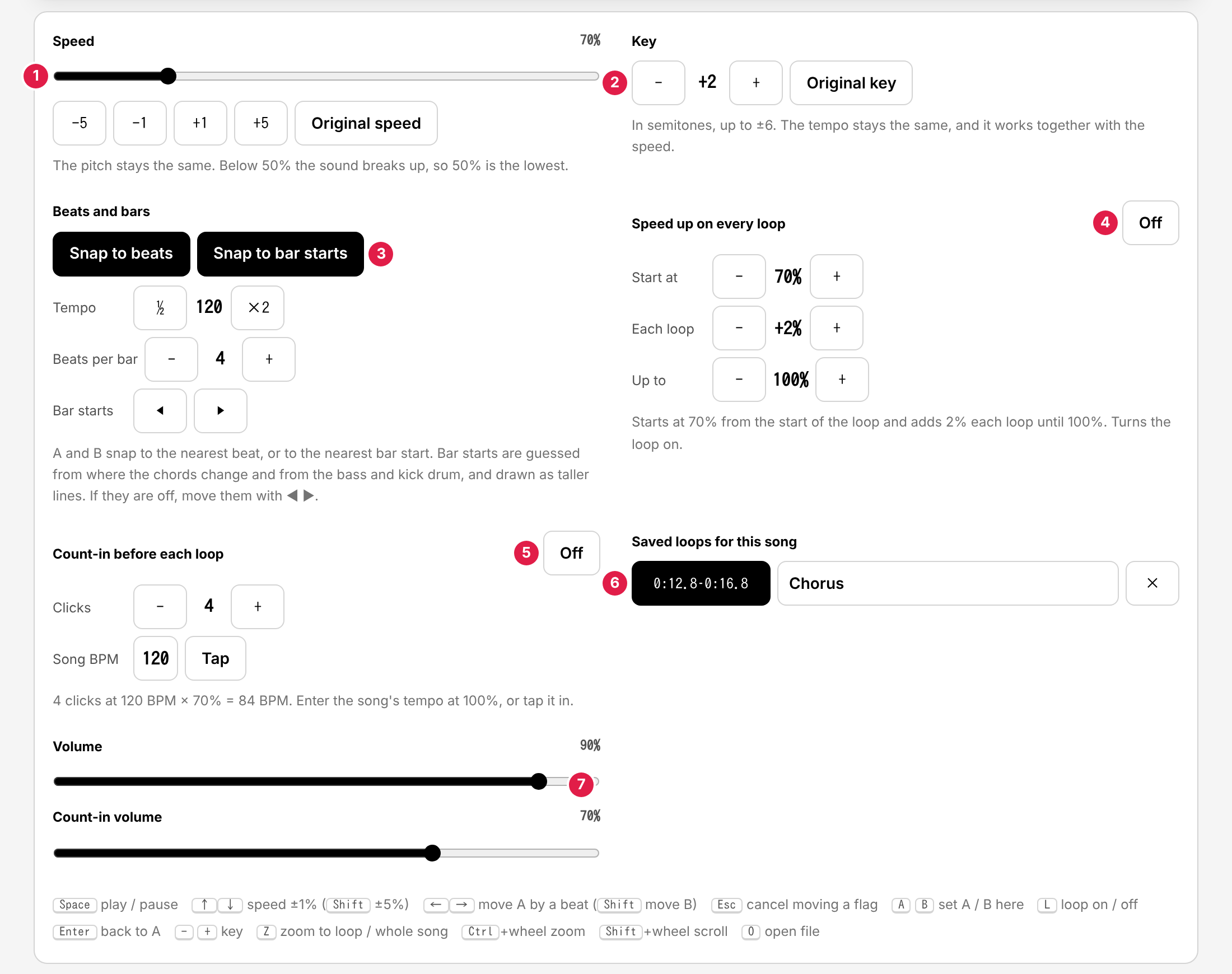
- Speed – From 50% to 150% in 1% steps; “Original speed” sets it back to 100%. The pitch does not change. Below 50% the sound breaks up too much to be useful.
- Key – Up to 6 semitones up or down. The tempo does not change, and it works together with the speed. See changing the key.
- Beats and bars – See above.
- Speed up on every loop – Starts at the first speed (70% at first) and adds a little each time the loop comes around (+2%), until the top speed (100%). It starts again from the first speed when you play from the start of the loop. See speeding up step by step.
- Count-in before each loop – Clicks before each pass so you can get ready. The clicks follow the song's tempo and the current speed: at 70%, a 120 BPM song gets clicks at 84 BPM. The detected tempo is used until you enter or tap a BPM yourself.
- Saved loops for this song – Each saved loop has a name (such as “Intro” or “Solo, first half”). Tap its time to play it.
- Volume – For the song and for the count-in clicks.
On a phone
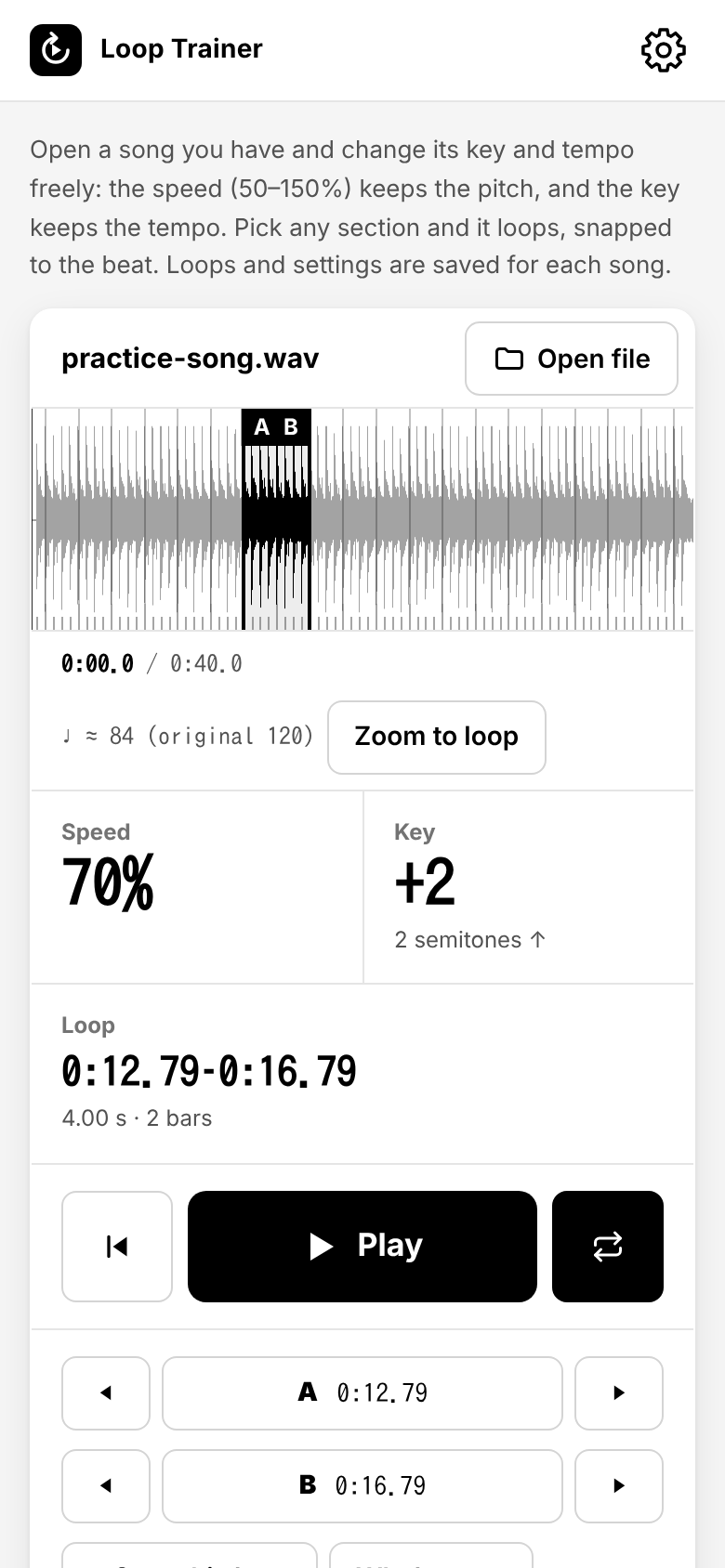
Everything works the same on a phone. The buttons are large so you can press them with a guitar in your hands. A few tips:
- The sound starts after the first tap on Play (phones do not allow sound before you touch the page).
- On iPhone, it plays even when the ring/silent switch is on silent (iOS 17 or later).
- The screen stays on while it plays.
- Long songs need a lot of memory once decoded (about 20 MB a minute). Files longer than about 10 minutes show a warning and may be slow on older phones.
Keyboard shortcuts
| Key | Action |
|---|---|
Space | Play / pause |
↑ ↓ | Speed ±1% (with Shift: ±5%) |
← → | Move A by a beat (with Shift: move B) |
A B | Put A / B at the current position |
L | Loop on / off |
Enter | Back to A |
- + | Key down / up a semitone |
Z | Zoom to the loop / back to the whole song |
Esc | Cancel moving a flag |
O | Open a file |
Saving, installing, and offline use
- For each song, the loops, speed, key, and count-in tempo are saved in your browser, keyed by the file name and size. The audio itself is not saved: open the file again to continue.
- You can install the app: in Chrome or Edge, use the “Install” button that appears after you have opened a file (or the browser menu); on iPhone and iPad, tap Share and then “Add to Home Screen”.
- After you have opened a file once, the app also works offline.
- Nothing about your audio is sent anywhere. See the privacy policy.