How to use Karaoke Trainer
Karaoke Trainer shows the original singer's melody as a line and draws your pitch over it while you sing, so you can see where you went flat or sharp. This guide walks through each part of the screen.
Start in three steps
- Load a song. Tap “Choose a song file” and pick a song you have (MP3, WAV, M4A, FLAC…). Wait until the bar is full.
- Put on headphones and press “Sing”. The song starts and your pitch is drawn over the grey melody line.
- Press “Stop singing”. See how much was on pitch, and tap a part that went off to sing it again.
No song at hand? Press “Try the demo song”: a short song made for this app, which needs no download.
Loading a song
Choose a file, or drop it on the box. Any audio format your browser can play works (MP3, WAV, M4A (AAC), FLAC, Ogg…), up to 10 minutes. The app then:
- separates the vocals from the accompaniment with an AI model (Spleeter), and
- finds the melody of the separated vocals: the pitch every 10 milliseconds.
The bar shows how far it is and about how long is left. On a recent computer a 4-minute song is usually ready in a minute or two; a phone takes longer. Keep the screen on until it finishes.
The first time, the browser downloads the AI model (about 75 MB) and the engine that runs it (about 14 MB, or 27 MB when the GPU is used): about 89 MB in all, only once. On a phone or tablet the app asks before it starts, so you can wait for Wi-Fi.
Every song you load is kept on this device (the last 8). Under “Recent songs”, tap one and it opens at once, with no separation and even offline. Choosing the same file again also opens the saved copy.
The app only opens files on your device. It does not take songs from YouTube or streaming services. Use songs you bought or recorded, for your own practice.
Reading the melody line
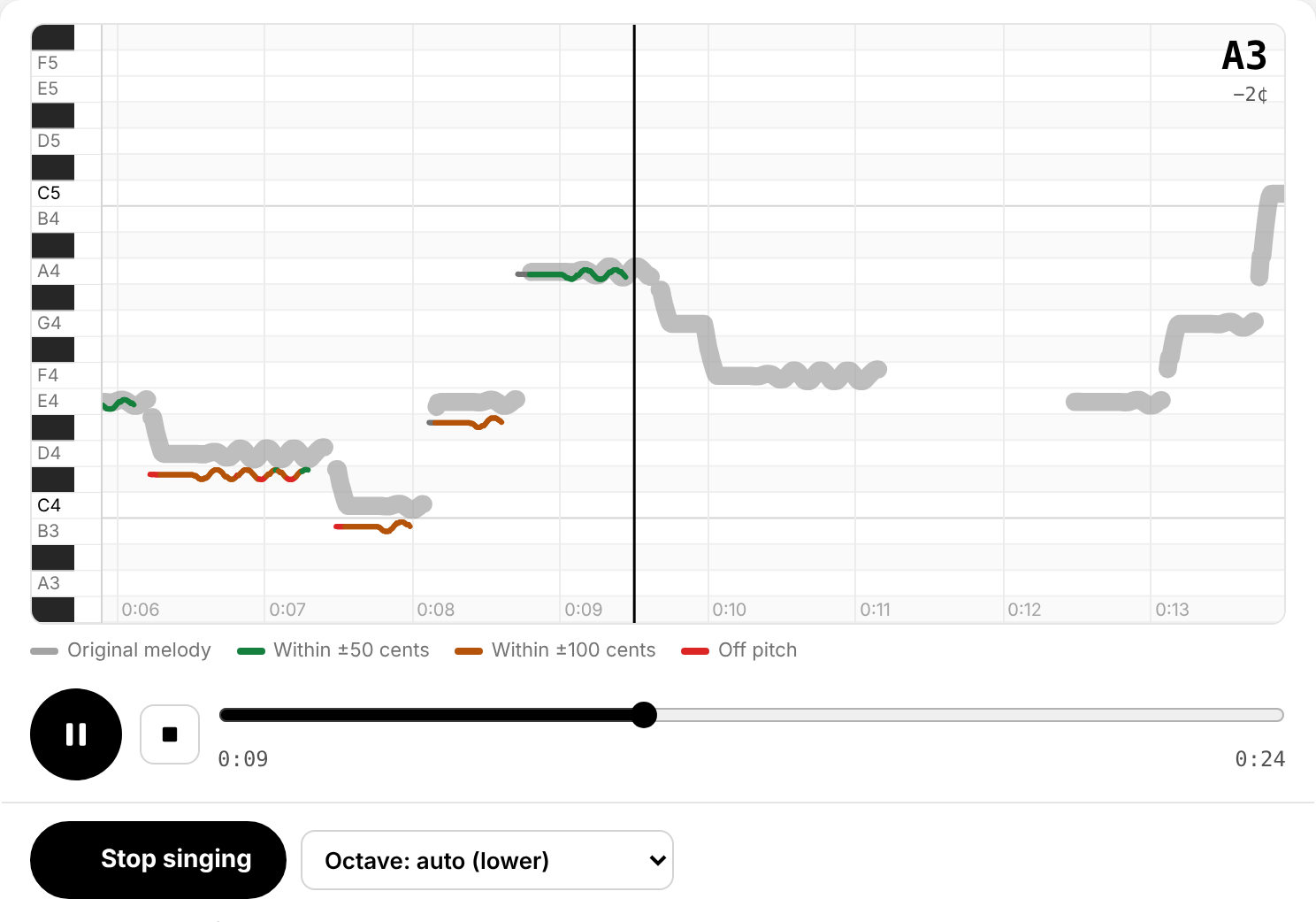
- Across is time. The black vertical line is now; the song scrolls to the left, so you see the next notes coming.
- Up and down is pitch, like a piano keyboard turned on its side (the note names are on the left; C4 is middle C).
- The grey line is the original singer's melody.
- Your line is coloured by how close you are: green within ±50 cents, yellow within ±100 cents, red further off. 100 cents is one semitone.
- The note you are singing now, and how far it is from the melody, show at the top right.
- Zoom – pinch the line (on a phone, or on a laptop's trackpad) to see more or fewer seconds at once; with a mouse, Ctrl + wheel. Only the time is zoomed.
- Look around – on a computer, scroll with two fingers on the trackpad: sideways moves in time, up and down moves to higher or lower notes (with a mouse, the wheel moves up and down and Shift + wheel moves in time). On a phone, drag sideways; move two fingers to go up or down.
- While the song plays, the line follows it again when the playing position comes back to its place, or when you press ▶. Tap the line to jump to that point of the song.
- The thin vertical lines and the times at the bottom move with the song, so you can see it playing even in the intro. Before the singing starts, the time until it does is shown (“Singing starts in 12 s”).
Singing
- Put on headphones. With a speaker, the microphone hears the song too, and the original singer's voice gets mixed into your line. Wired headphones are best; Bluetooth headphones add a delay (see Settings).
- Press “Sing”. The first time, the browser asks to use the microphone: allow it. The song starts from where it is.
- Sing along. Your line appears as you sing.
- Press “Stop singing” (or pause, or let the song end) to see how you sang.
Octaves: many people sing a song an octave lower or higher than the original singer (a man singing a song by a woman, for example). That counts as on pitch. The app finds your octave in the first seconds you sing and draws your line next to the melody; the menu next to “Sing” shows what it found (“Octave: auto (lower)”), and you can choose the octave yourself.
Looking back: how you sang
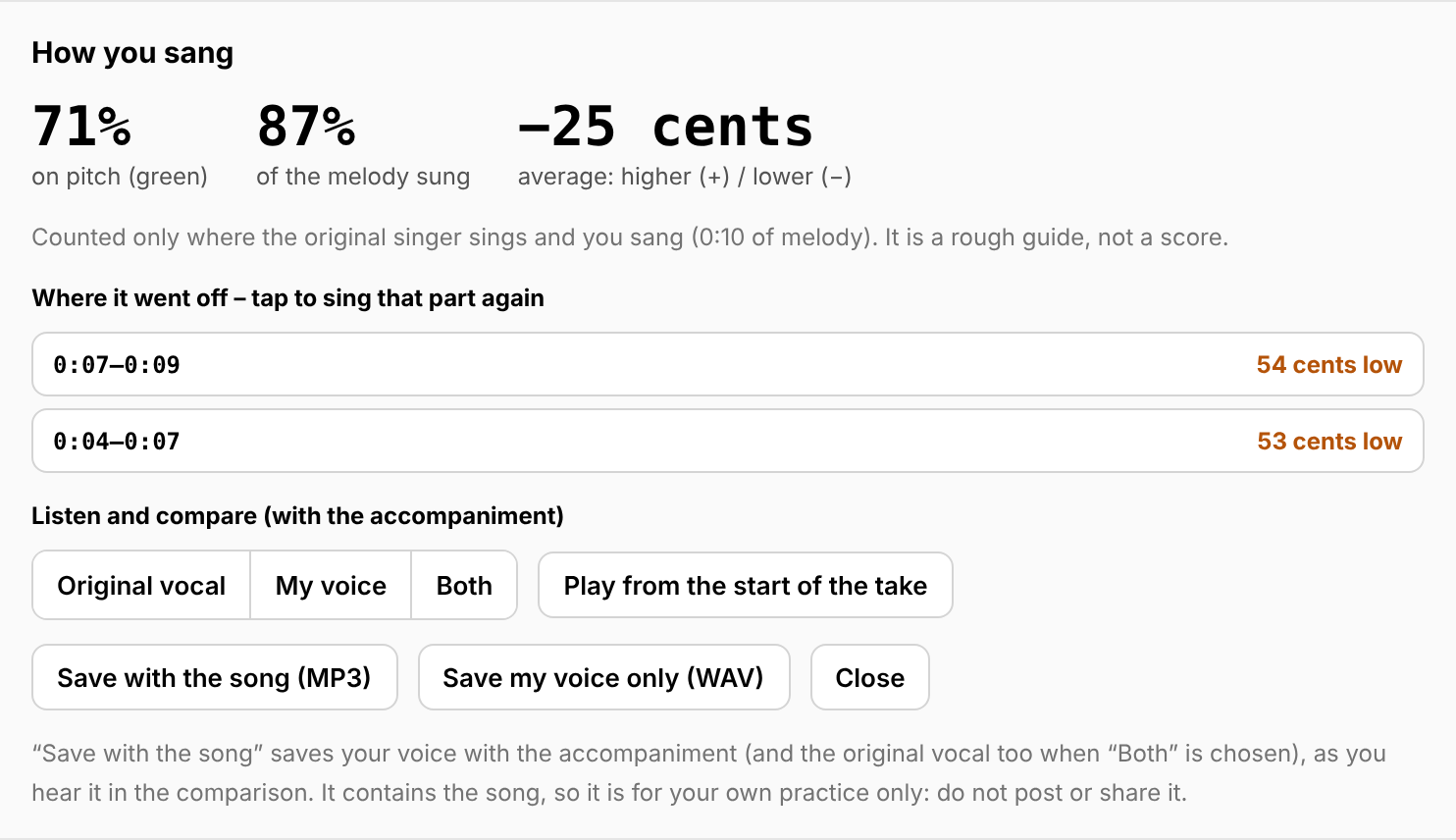
- On pitch – the share of the time you were in the green range. It counts only where the original singer sings and you sang, so pauses do not count against you.
- Of the melody sung – how much of the melody you sang at all.
- Average – whether you tend to be higher (+) or lower (−) than the melody, in cents.
- Where it went off – the phrases that were furthest off, with how far and in which direction. Tap one and the song plays from a second before that phrase, so you can sing it again right away.
- Listen and compare – “Original vocal”, “My voice”, or “Both”, with the accompaniment. “Play from the start of the take” plays from where you started singing.
- Keep this recording keeps it on this device with the song. Otherwise the recording is gone when you sing again.
- Save with the song (MP3) saves your voice with the accompaniment as one MP3 file (192 kbps): what “My voice” plays in the comparison, or with the original vocal too when “Both” is chosen. It covers the part you sang. Save my voice only (WAV) saves just your voice.
The MP3 is for your personal use only. It contains the song, and the rights to the song belong to its rights holders. Use it to listen back to your own practice, and do not upload it to video or social media sites, send it to others, or distribute it. The app asks you to confirm this each time, and writes it into the file's tag (comment).
The numbers are a guide for practice, not a score. The line and the list tell you more: where you go flat at the end of a long note, which jump you overshoot, which phrase starts late.
Vocal volume and key
- Vocal – 0% is karaoke (the accompaniment only), 100% is the original. In between, the singer becomes a quiet guide: useful while you are learning a song, then turn it down to 0%.
- Accompaniment – the volume of everything else.
- Mute – the speaker button next to each slider turns that part off and on again without losing its volume.
- Key – − / + moves the whole song down or up a semitone at a time, up to 6, without changing the tempo. The grey line moves with it. It takes a few seconds to prepare.
Finding your key (optional)
If a song feels too high or too low, measure your vocal range once (“Measure my range” in the song panel, or ⚙ → “My vocal range”). You do not need it to practice.
- Sing the lowest note you can sing comfortably on “ah” and hold it for 4 seconds.
- Then the highest note in your normal voice (not falsetto).
- Optionally, the highest note in falsetto.
The range is shown on a keyboard and saved on this device. From then on, each song shows a suggestion next to the key, such as “Suggested for you: −3”. Tap it to use that key. The app compares the melody's range (its low and high notes, leaving out the lowest and highest 5% of the time so a stray note does not count) with your range, and picks the change that fits best; sometimes the best fit is the original key sung an octave lower or higher.
Settings: how strict, delay, microphone
⚙ → Settings.
| How strict | Green (cents) | Yellow (cents) |
|---|---|---|
| Easy | ±75 | ±150 |
| Normal (default) | ±50 | ±100 |
| Strict | ±25 | ±50 |
Delay correction: every device takes a moment to play the sound and to hear the microphone (Bluetooth headphones much more). The app subtracts this delay. If your line is drawn later than the melody even when you sing in time, press “Measure the delay” and say “ta” with each of the 8 beeps, or move the slider by hand.
Microphone: noise suppression, echo cancellation, and automatic gain are off by default, because they can cut or change parts of the voice and make the pitch harder to follow. Turn on echo cancellation only if you must use a speaker.
On a phone or tablet
Everything works on a phone, in one column: after a song is loaded, the screen scrolls to the melody line. Loading a new song takes longer than on a computer; keep the screen on until it is ready. On iPhone and iPad, the sound plays even with the silent switch on. The app can be added to the home screen and then works offline.
What is kept on your device
The AI model, the songs you loaded (the separated vocals and accompaniment and the melody line), recordings you chose to keep, your vocal range if you measured it, and your settings. Nothing is uploaded. Delete them with ⚙ → “Delete saved songs”, ⚙ → “Delete the AI model”, and “Delete” in “My vocal range”. See the privacy policy.