How to use Guitar Chord Finder
Guitar Chord Finder shows how to play any chord in any guitar tuning. This guide walks through every part of the screen.
Find a chord in three steps
- Choose the tuning. Tap a preset such as DADGAD or Open G, or choose Custom and set each string.
- Choose the chord: the root (C to B) and the chord type (major, m, 7, sus4, and so on).
- Look and listen. The best shapes appear for the low, middle, and high positions. Tap a diagram to hear it.
The screen at a glance
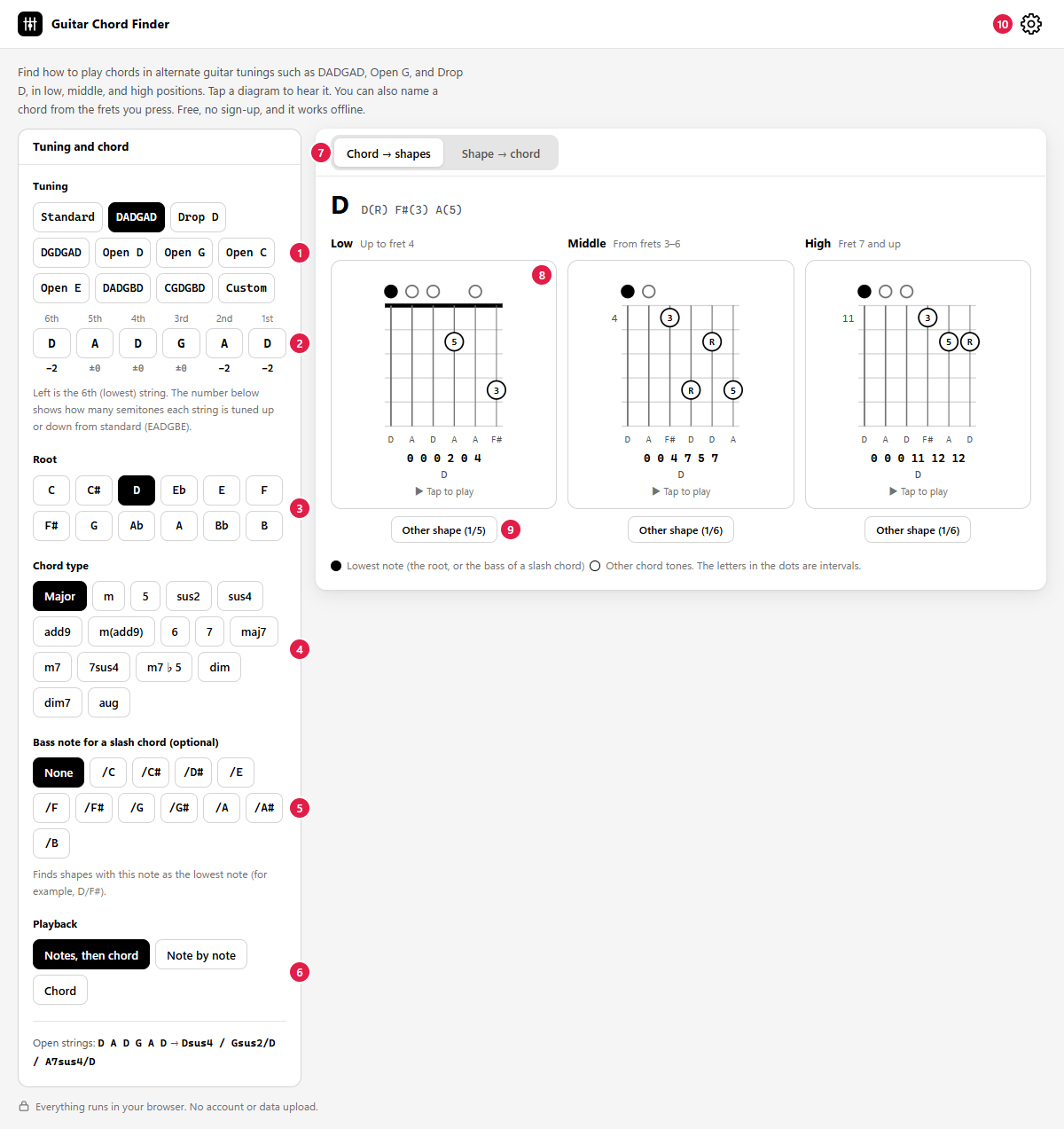
- Tuning presets – Standard, DADGAD, Drop D, DGDGAD, Open D, Open G, Open C, Open E, DADGBD, and CGDGBD. Custom keeps your own tuning.
- Strings – The note of each string, from the 6th (left) to the 1st. Change any of them to make your own tuning. The number below shows how many semitones it is from standard tuning. Under the settings, “Open strings” shows the chord the open strings make.
- Root – The note the chord is built on.
- Chord type – 16 types, from major and minor to sus, add9, 7th chords, dim, and aug.
- Slash-chord bass (optional) – Choose a bass note to find shapes with that note as the lowest, such as D/F#.
- Playback – Note by note then the chord, note by note only, or the chord only.
- Mode – “Chord → shapes” finds shapes for a chord; “Shape → chord” names the chord you press (see below).
- Chord diagram – Tap it to hear the shape.
- Other shape – Shows the next shape in the same position. Up to six shapes are shown, best first.
- ⚙ Settings – How to use, these guides, privacy, and about.
Your tuning, chord, and other settings are saved in your browser, so the app opens where you left off.
Reading the diagrams
- Strings run from the 6th (left) to the 1st (right). The thick line at the top is the nut; when a shape starts higher up the neck, a number at the left shows the starting fret.
- Black dot – the lowest note (the root, or the bass of a slash chord). White dots – other chord tones.
- Letters in the dots are intervals: R is the root, 3 the third, 5 the fifth, ♭7 the minor seventh, and so on. They show what each finger adds to the chord.
- A circle above the nut is an open string; × means do not play that string. A grey bar shows a barre.
- Under the diagram: the note of each string, then the shape as frets from the 6th string, such as
x 3 2 0 1 0.
Low, middle, and high positions
Shapes are grouped by where they sit on the neck: low is up to the 4th fret (often with open strings), middle starts at frets 3 to 6, and high is the 7th fret and up. Comparing them helps you choose a shape that is close to the next chord in a song.
The app keeps only shapes that are natural to play: four fingers or fewer (a barre counts as one), within four frets, with the strings you play next to each other, and with the root (or the chosen bass note) as the lowest note. When a position has no such shape, it says so — try another position, a slash chord, or a capo.
Name a chord from a shape
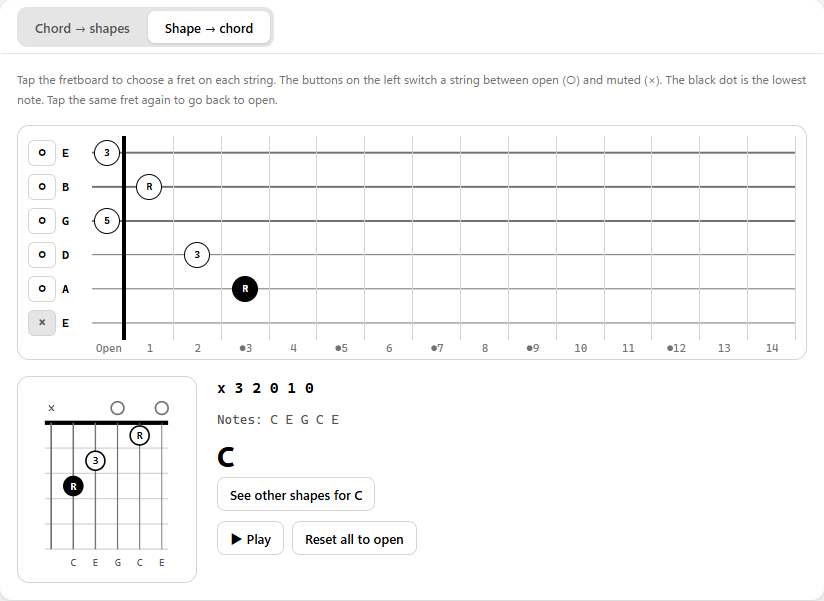
Switch to Shape → chord and press frets on the fretboard. The app shows the chord name, other possible names, and the notes. The buttons at the left switch a string between open (○) and muted (×); tap a pressed fret again to go back to open. If the chord is one of the types in the finder, “See other shapes” jumps to all its shapes.
On a phone
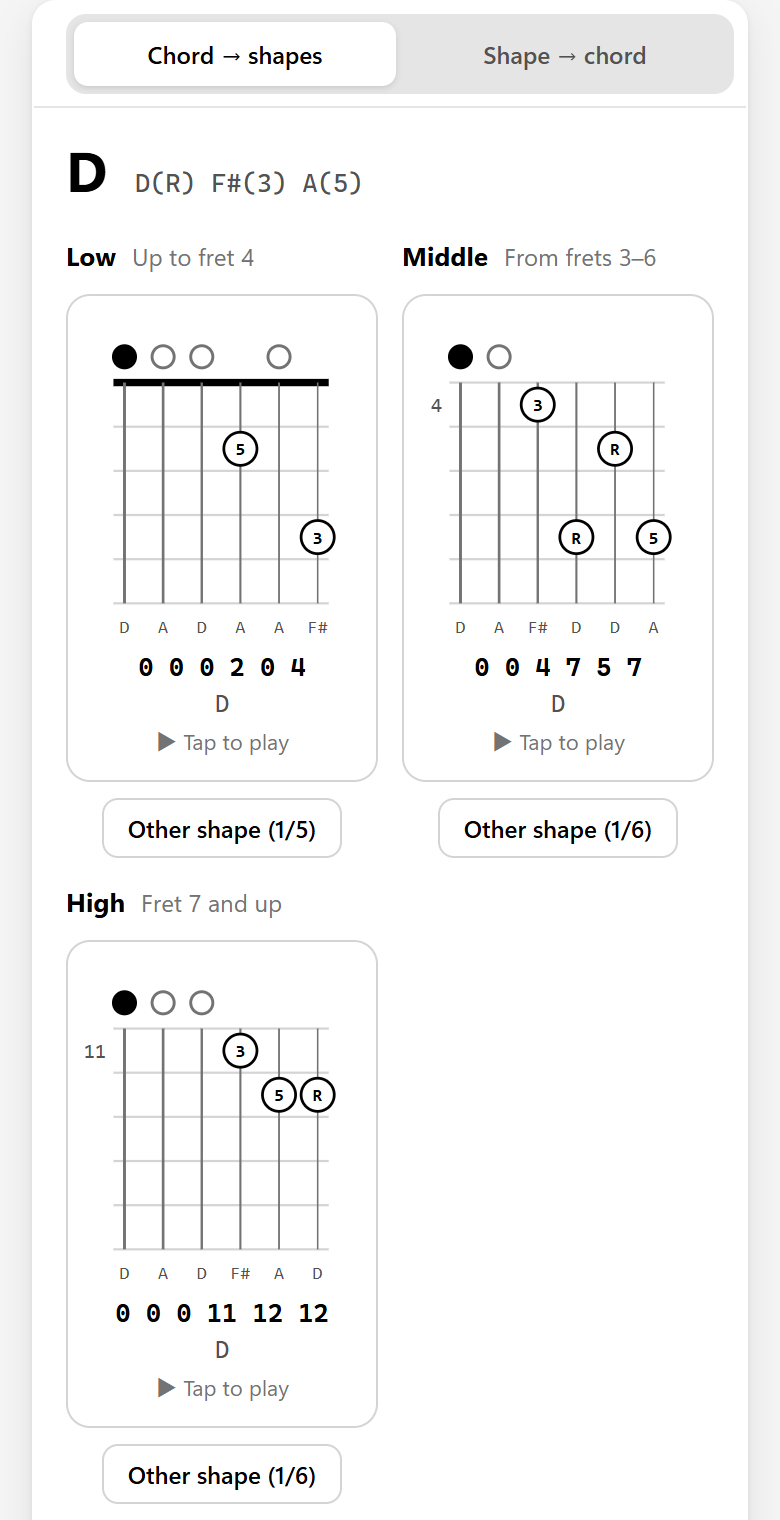
On a phone, the settings are at the top and the shapes below them. Scroll the fretboard in Shape → chord sideways to reach the higher frets.
Install the app and use it offline
After the first visit, the app works without an internet connection. To add it to your home screen, on iPhone or iPad tap Share and then Add to Home Screen; on Android, choose Install app or Add to Home screen in the browser menu.
Next: alternate tunings explained, or the chord charts for DADGAD, Open G, and Drop D and Open D.