How to use Setlist Metronome
Setlist Metronome keeps a metronome setting for every song you practice, so you do not have to set the tempo again each time you change songs. This guide walks through every part of the screen.
Start in three steps
- Add a song. Tap “+ Add song” and type the song title in the box at the top.
- Set it up: the tempo (BPM), the time signature, the rhythm, and the sound.
- Tap Start. Add the next song the same way. Each song keeps its own settings, and everything is saved automatically.
The screen at a glance
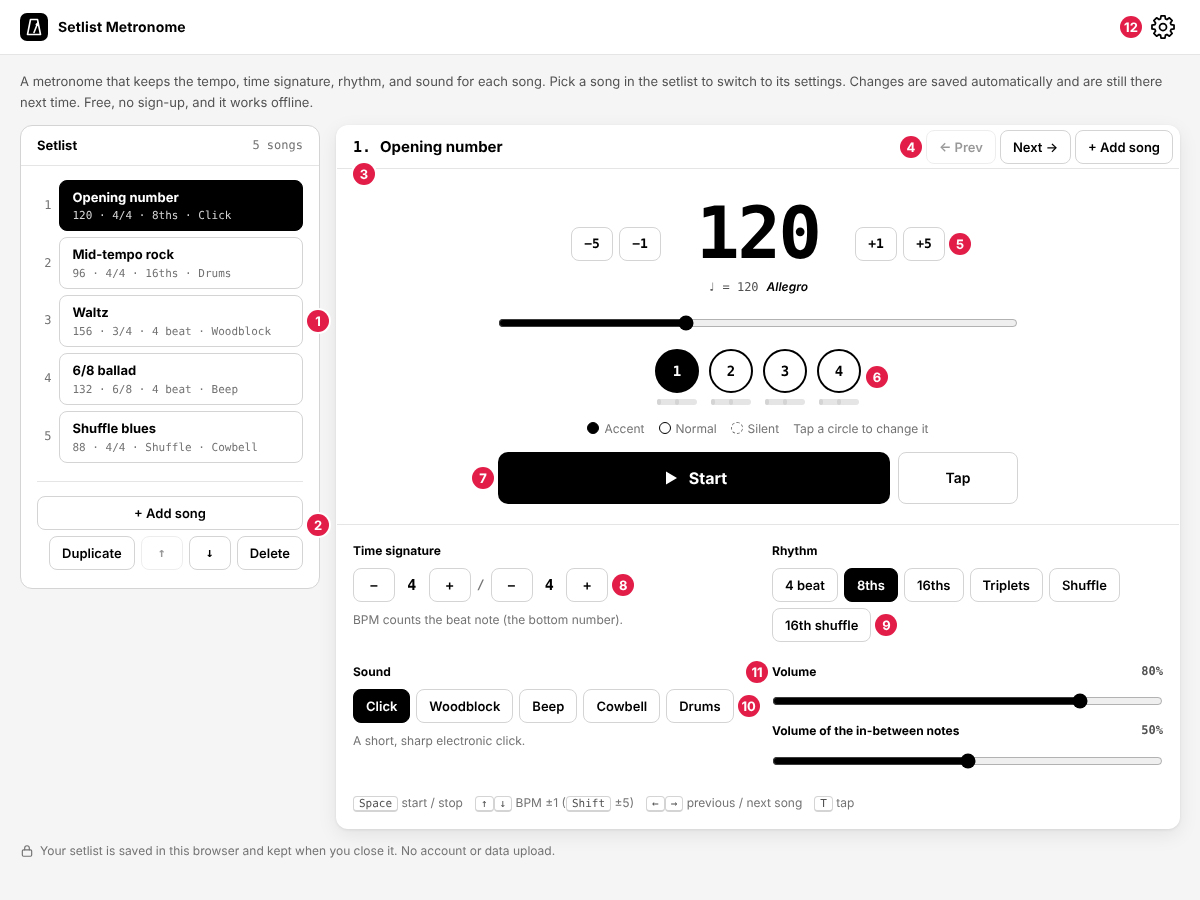
- Setlist – Your songs in the order you play them, with the tempo, time signature, rhythm, and sound of each. Tap a song to switch to it.
- List buttons – Add a song after the selected one, duplicate it, move it up or down, or delete it.
- Song title – The number shows where the song is in the setlist. Type the song title here. A new song starts with an empty title, and the box shows “Enter the song title”.
- ← Prev / Next → / + Add song – Move through the list, or add a song, without leaving the metronome.
- Tempo – The BPM, with −5, −1, +1, and +5 buttons. Under it: the note that gets the beat and the tempo marking (such as Allegro).
- Beat circles – One circle per beat. They light up as the metronome plays. Tap one to change its accent.
- Start / Tap – Start or stop the metronome. Tap “Tap” in time with the music to set the tempo.
- Time signature – The top number (beats in a bar) and the bottom number (the note that gets the beat).
- Rhythm – 4 beat, 8ths, 16ths, triplets, shuffle, or 16th shuffle.
- Sound – Click, woodblock, beep, cowbell, or drums.
- Volume – The overall volume, and the volume of the notes between the beats.
- ⚙ Settings – How to use, these guides, privacy, and about.
Setting the tempo
- Use the −5, −1, +1, +5 buttons or the slider. You can also tap the number and type a tempo from 20 to 300.
- Tap tempo: tap “Tap” at least twice in time with a recording or with the song in your head. The app uses the average of your last few taps. If you stop for two seconds, it starts counting again.
- The tempo marking under the number (Largo, Andante, Allegro, and so on) is a rough guide. See tempo markings and BPM.
Time signature and accents
Set the top number from 1 to 15 and the bottom number to 2, 4, 8, or 16. BPM counts the bottom note: in 4/4 it counts quarter notes, and in 6/8 it counts eighth notes. If a 6/8 song is marked “♩. = 60” (a dotted quarter), set 6/8 at 180 BPM, or 2/4 with triplets at 60 BPM. See time signatures explained.
Each beat circle has three states:
- Black (accent) – a higher, louder sound. The first beat is an accent by default, and in 6/8, 9/8, and 12/8 every third beat is too.
- White (normal) – the usual sound.
- Dashed (silent) – no sound on that beat. Silencing beats 2 and 4, or every other bar's beats, is a good way to check that you keep time by yourself.
Changing the time signature resets the accents to the default for that signature.
Rhythm and sound
The rhythm decides how many notes play inside each beat. The small bar under each circle shows where they fall.
| Rhythm | Notes in one beat |
|---|---|
| 4 beat | The beat only |
| 8ths | The beat and the “and” (2 even notes) |
| 16ths | 4 even notes |
| Triplets | 3 even notes |
| Shuffle | 2 notes, the second one late (swung 8ths) |
| 16th shuffle | 4 notes, every second one late (swung 16ths) |
For the shuffles, Swing sets how late the second note is. 67% is a triplet shuffle; lower values sound lighter. See shuffle and swing.
The notes between the beats are quieter than the beat. Set their level with “Volume of the in-between notes”, or set it to 0% to hear only the beats.
Drums play a simple pattern instead of a click: kick on beat 1 (and 3), snare on the backbeats, and a hi-hat that follows the rhythm. It is closer to playing with a drummer.
Practicing a setlist
- Put the songs in the order you play them, using ↑ and ↓.
- Use Next → between songs. If the metronome is playing, it keeps playing with the next song's settings from beat 1.
- To make a version of a song at a slower practice tempo, select the song, tap Duplicate, and lower the tempo of the copy.
- On a computer, the keyboard works too: Space starts and stops, ↑ ↓ change the BPM (with Shift, by 5), ← → move between songs, and T taps the tempo.
On a phone
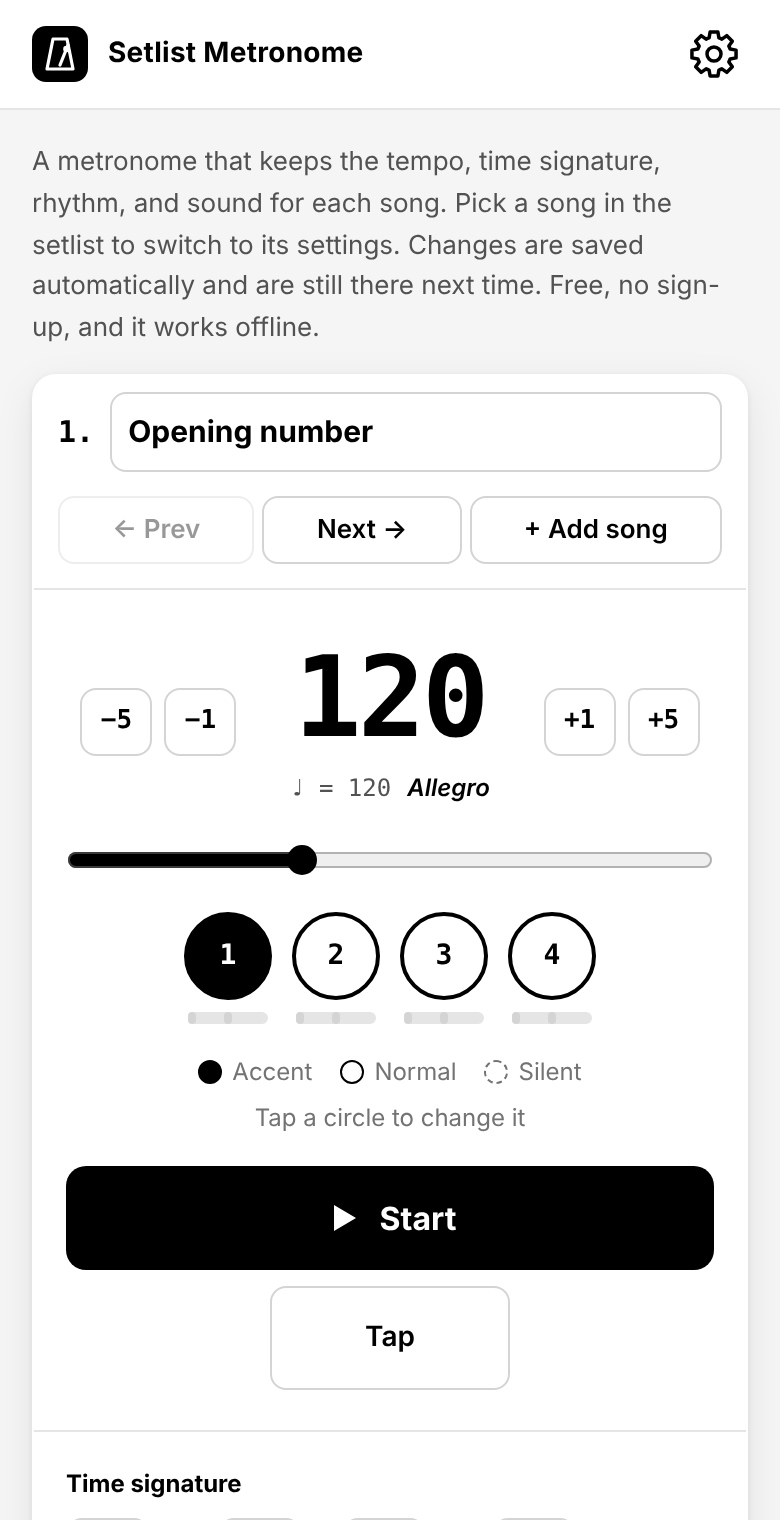
While the metronome plays, the app asks the phone to keep the screen on. On an iPhone, turn off silent mode if you hear nothing.
Saving, installing, and offline use
- Your setlist is saved in this browser on this device. It is not sent anywhere and is not shared between devices or browsers. Clearing this site's data in the browser deletes it.
- To use it like an app, add it to your home screen: on an iPhone, Share → Add to Home Screen; on Android or a computer, use “Install app” in the browser menu.
- After you have opened it once, it also works offline.